Most people scroll with the sound off. Studies show 85% of social video is watched on mute, which means a video without text loses its message before it even starts.
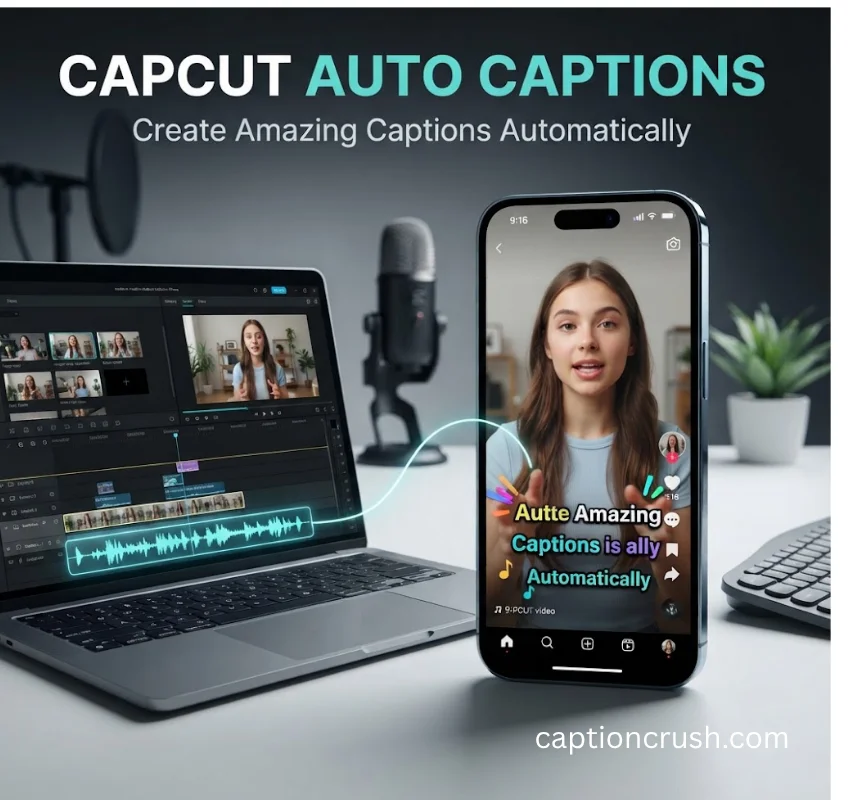
This guide shows you how Ultimate Guide to create amazing captions automatically in 2026, what auto caption tools actually get right and wrong, and how to style, translate, and export captions that keep viewers watching.
Table of Contents
What Are Auto Captions and Why They Matter in 2026
Auto captions are text versions of spoken audio, generated by AI speech recognition instead of typed by hand. They sync with the video timeline,Ultimate Guide to Create Amazing Captions, word by word, so viewers can follow along with or without sound.
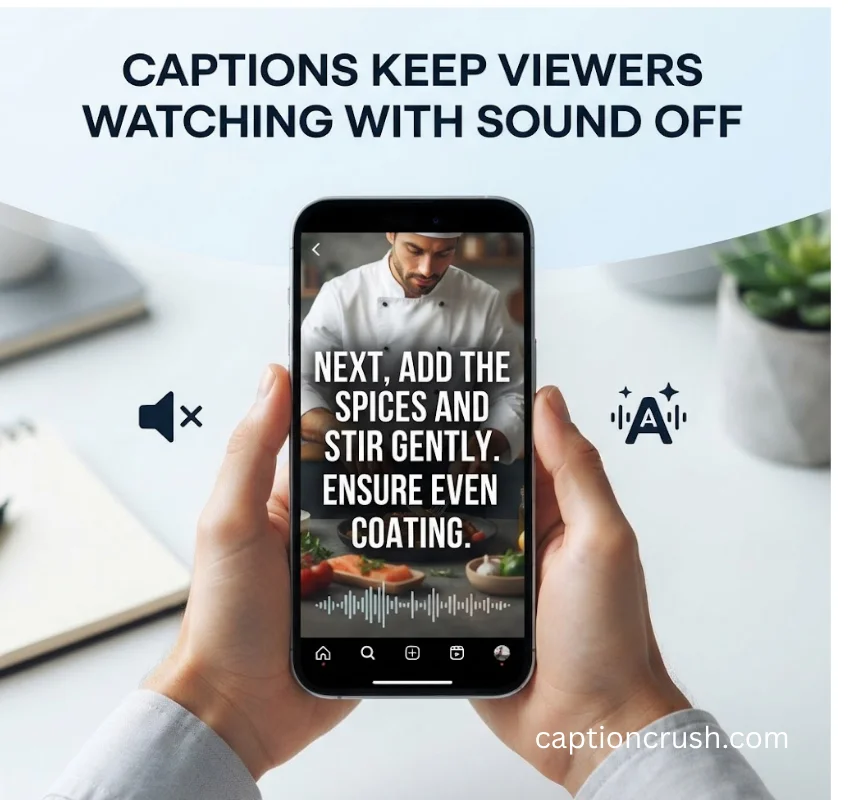
Automatic speech recognition (ASR) is the technology behind this. It listens to your audio, converts it into text, and time-stamps each word so captions appear exactly when they’re spoken. Modern ASR models handle accents, background noise, and multiple speakers far better than the tools from even three years ago.
Captions are not just for accessibility, though that matters too. Over 48 million Americans have some degree of hearing loss (National Deaf Center), and roughly 80% of people who use captions are not deaf or hard of hearing at all (Ofcom) — they use them in noisy rooms, quiet offices, or just because reading is faster than listening.
There’s also a video SEO angle. Search engines cannot watch a video, but they can crawl a caption file. Captioned videos rank for more search terms and show up more often in Google’s Featured Snippets and video previews.
Captions vs subtitles is a common mix-up. Captions represent all audio, including sound effects and speaker labels, built mainly for accessibility. Subtitles focus only on translated or transcribed dialogue for viewers who understand the audio but not the language.
How to Create Captions Automatically
Every automatic caption generator, whether free or paid, follows the same core workflow. Knowing each step helps you catch errors before they go live.
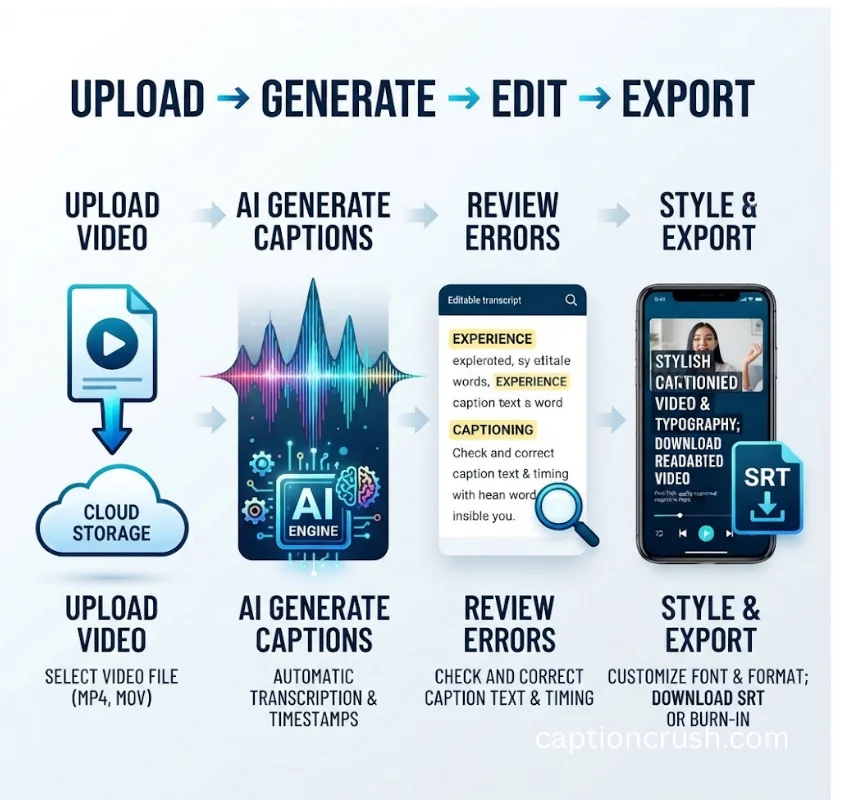
Upload Your Video or Audio
Start by uploading your video, audio, or podcast file. Most tools accept MP4, MOV, WAV, and MP3, and processing usually takes a few seconds per minute of footage.
Let AI Generate the Transcript
The ASR engine transcribes your speech and applies word-level timing, meaning each word gets its own timestamp instead of one block of text per sentence. This is what makes captions feel snappy and readable instead of clunky.
Review and Correct Errors
No AI transcription is perfect. Auto captions commonly misfire on brand names, technical jargon, homophones, and overlapping speech. Always scan the full transcript before exporting, especially the first and last few seconds where audio can cut off mid-word.
Must Visit: 100+ Unforgettable Baby Shower Captions for Instagram (2026): Cute, Funny & Heartwarming Ideas
Style and Export
Once the text is accurate, apply a caption style, then export as a burned-in caption (permanently part of the video frame) or a separate SRT or VTT file you can upload alongside the video on platforms like YouTube.
Mobile workflows tend to favor burned-in captions for TikTok, Reels, and Shorts, since the text needs to survive re-uploads and platform compression. Desktop workflows are better suited for SRT export, longer-form content, and multi-language versions of the same video.
Choosing the Right Automatic Caption Generator
Not every caption tool is built for the same job, so match the tool to your platform and workflow before committing to one.
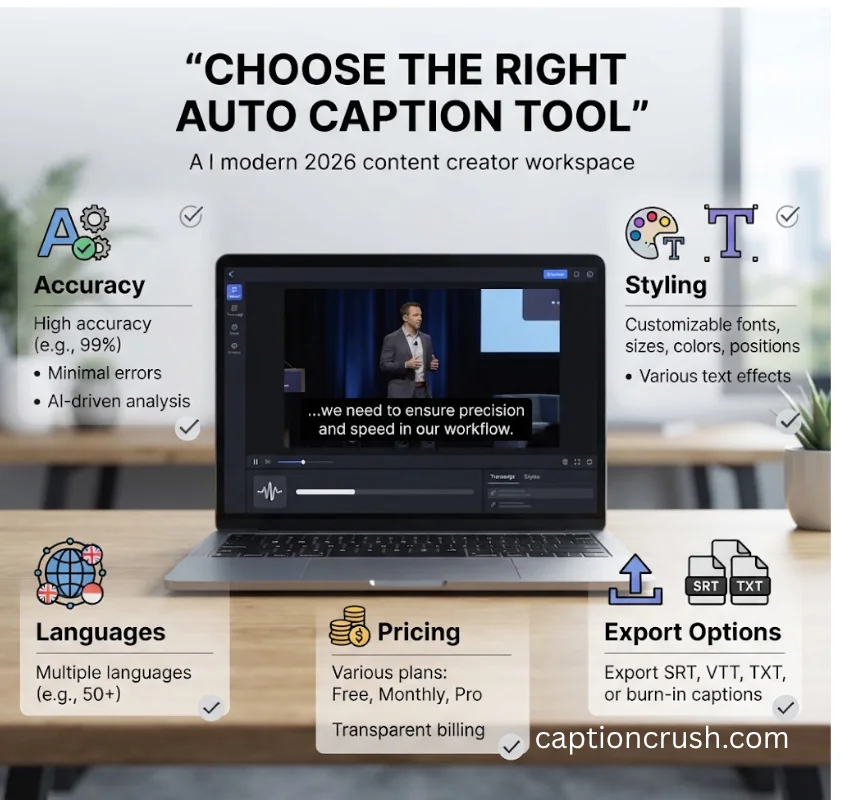
Look for these factors before you commit to any auto caption generator:
- Accuracy on your content type — interviews, fast speech, and heavy accents need stronger ASR models than scripted, single-speaker video
- Export flexibility — the ability to export both burned-in MP4 and standalone SRT/VTT files, not just one or the other
- Language coverage — 100+ supported languages is now common for multilingual creators
- Styling depth — font, color, animation, and per-word highlight control, not just plain white text
- Watermark and pricing rules — many free plans limit video length, resolution, or add a watermark unless you upgrade
Free tools are usually fine for short social clips under a few minutes. Paid plans make more sense once you’re exporting in bulk, need 4K resolution, or require unlimited SRT downloads.
Styling and Customizing Automatic Captions for Maximum Engagement
Plain white subtitles rarely stop the scroll. Styled, animated captions do, and platform-specific formatting is what separates a professional clip from an amateur one.
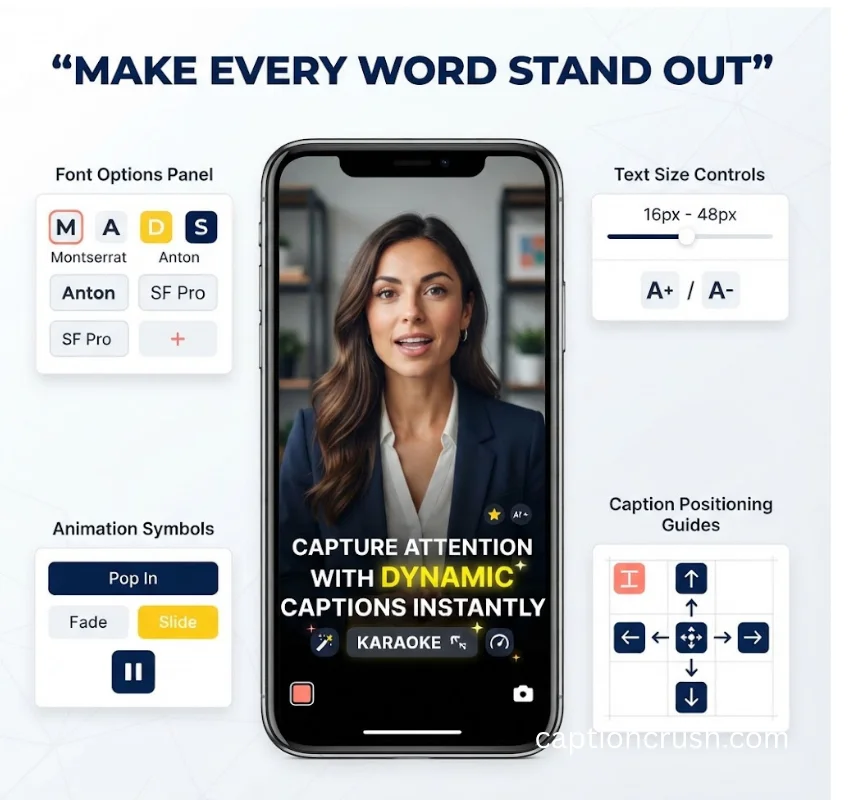
Active-word highlighting, sometimes called karaoke-style captions, bolds or colors each word as it’s spoken. This single feature is consistently linked to higher watch-through rates on short-form video because it gives the eye something to track in sync with the voice.
Font, color, and position all affect readability. High-contrast colors against a semi-transparent background box perform best, especially on busy footage where plain text can disappear into the frame.
Platform sizing matters more than most creators realize:
- TikTok, Reels, and Shorts use a 9:16 vertical frame — keep captions inside the safe zone, away from the top status bar and bottom UI icons
- YouTube long-form uses 16:9 — captions can sit lower in the frame without UI overlap
- LinkedIn and X often autoplay muted in a smaller feed window — larger, bolder text reads better at a glance
Reusable caption presets or brand templates save time once you find a style that fits your channel, so you’re not rebuilding fonts and colors from scratch on every upload.
Multilingual Accuracy and Accessibility: What Auto Captions Get Wrong
AI captions have improved fast, but they are still not flawless, and knowing the failure points helps you catch mistakes before publishing.
Accuracy drops with heavy accents, low-quality audio, crosstalk, and niche vocabulary. Medical, legal, and technical terms are still the most common source of transcription errors, since ASR models are trained mostly on everyday conversational speech.
Translation adds a second layer of risk. Auto-translated captions can shift meaning, especially with idioms, humor, or industry-specific phrases. Always have translated captions checked by someone who speaks the target language before publishing to an international audience.
Punctuation and hallucinated words are a smaller but real issue. Some ASR engines insert words during silence or background noise, so a quick read-through of the full transcript is non-negotiable, not optional.
A quick pre-publish checklist:
- Read every caption line against the audio, not just the first few seconds
- Check brand names, numbers, and proper nouns specifically
- Confirm timing doesn’t cut words off mid-syllable
- Verify translated captions with a native speaker when publishing internationally
FAQs
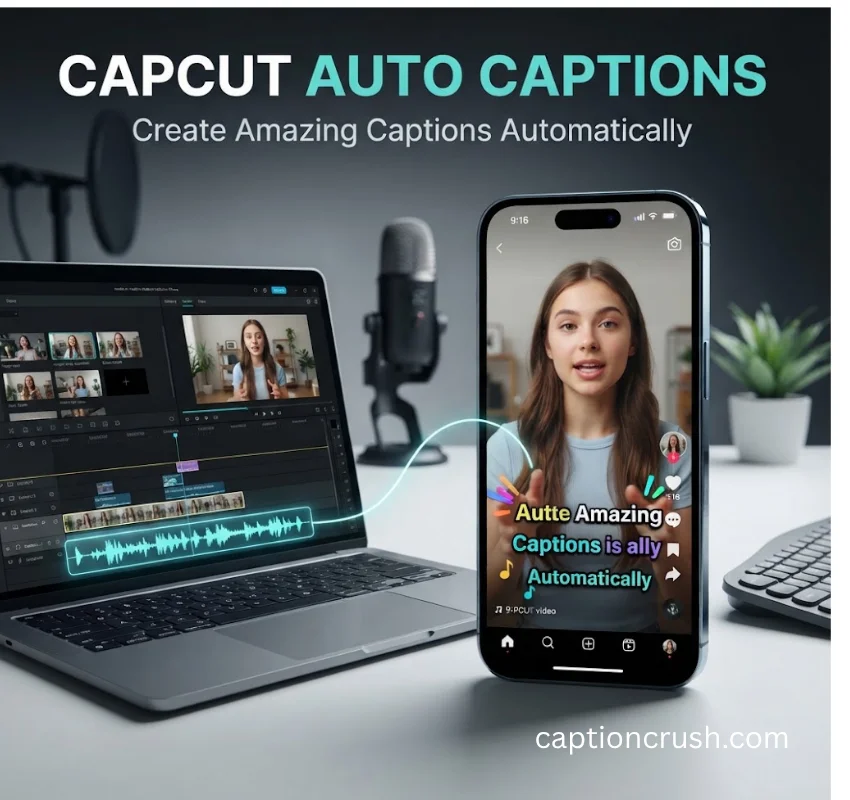
How to auto caption in CapCut?
Upload your clip, open the Text or Captions panel, select Auto Captions, choose the spoken language, and click generate.
Is auto captions free on CapCut?
CapCut moved core auto caption generation and SRT export behind its Pro subscription as part of a 2025 pricing update.
How to get CapCut auto captions to work?
Make sure your audio is clear and the correct spoken language is selected before generating. If captions fail to appear.
How do I turn on auto captions?
In most caption generators, including CapCut, open the Text or Captions tab, select Auto Captions, pick your video’s language, and click Generate. The tool transcribes the audio automatically and syncs the text to your timeline.
Does CapCut have a subtitle generator?
Yes. CapCut includes a built-in subtitle and auto caption generator that transcribes spoken audio, supports multiple languages, and lets you translate and style captions before exporting.
How to make auto captions?
Upload your video to an auto caption generator, let the AI transcribe your audio with word-level timing, review the text for errors, apply a caption style.
Conclusion
Auto captions are no longer optional for anyone publishing video in 2026. They protect watch time on muted feeds, widen your reach to the 48 million Americans with hearing loss, and give search engines something to index.
Pick a tool that matches your platform, review every transcript before publishing, and style your captions to fit the frame they’ll actually be watched in.

Timmy Abroy is a content creator and the voice behind CaptionCrush, where he shares practical tips on social media captions, creator growth, and content strategy. When he’s not writing, he’s testing what actually gets people to stop scrolling.