Old subtitles ruin a good clip fast. Over half of companies now repurpose their video content into shorter social clips, according to Wistia’s 2026 State of Video Report, and most of that source footage already has text baked in.
If you want to remove captions from video without wrecking the footage, you have real options: AI tools, manual editing tricks, and free desktop software. This guide walks through all six, plus how to pick the right one for your caption type.
Table of Contents
Hardcoded vs. Softcoded Captions: Know This Before You Start
Before you touch any tool, check what kind of captions you are dealing with. Hardcoded captions are burned directly into the video’s pixels. They are part of the image itself, so no player setting can turn them off.
Softcoded captions live in a separate subtitle track or file, layered on top of the video. A viewer can toggle them on or off without changing the actual footage.
This distinction decides everything. Hardcoded text needs AI reconstruction or manual covering. Softcoded text just needs the track removed or disabled, which takes seconds.
6 Ways to Remove Captions from Video
Each method below works differently depending on your caption type and how polished you need the final clip to be. Here are the six most reliable ways to do it.
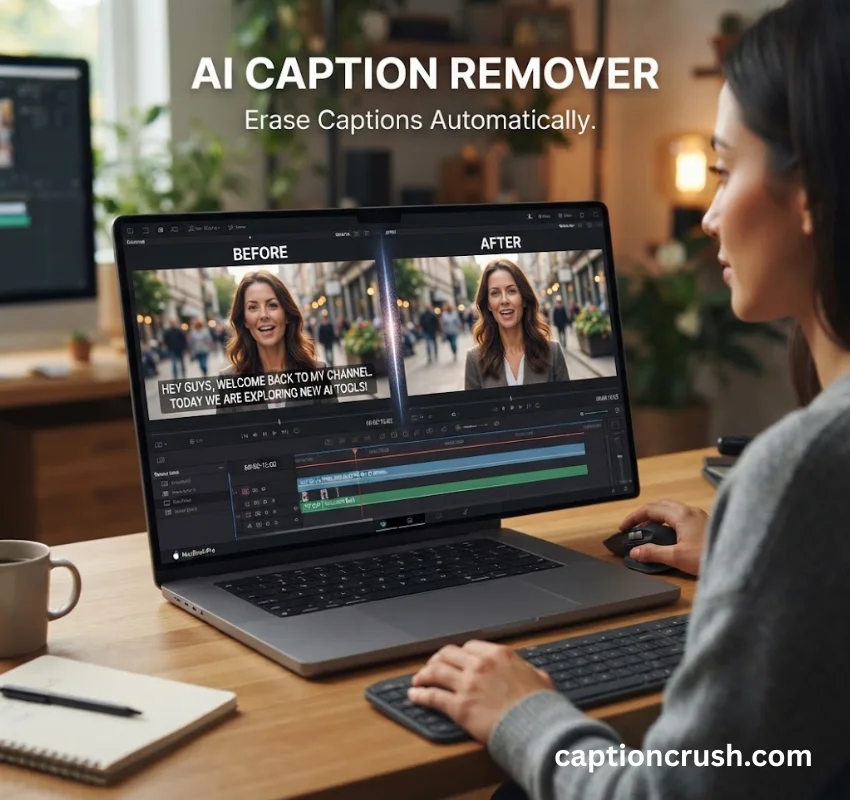
Use an AI caption remover. Tools like Vmake, CreatOK, and Wink use AI inpainting to detect burned-in text automatically, erase it, and rebuild the background behind it using the surrounding color, texture, and motion. This is currently the only reliable fix for hardcoded captions without cropping the frame.
Crop out the caption area. Most video editors, including CapCut, let you crop the bottom (or wherever the text sits) out of the frame entirely. It works instantly but permanently changes your aspect ratio, which can look awkward on vertical or square formats.
Must Visit: 150 Spanish Captions for Instagram (2026): Best Cute, Funny & Aesthetic Ideas

Cover the text with a freeze-frame or color patch. You grab a clean frame from elsewhere in the clip, then overlay it on top of the caption for that duration. It is a manual, frame-by-frame process, so it works best on short clips with static backgrounds.

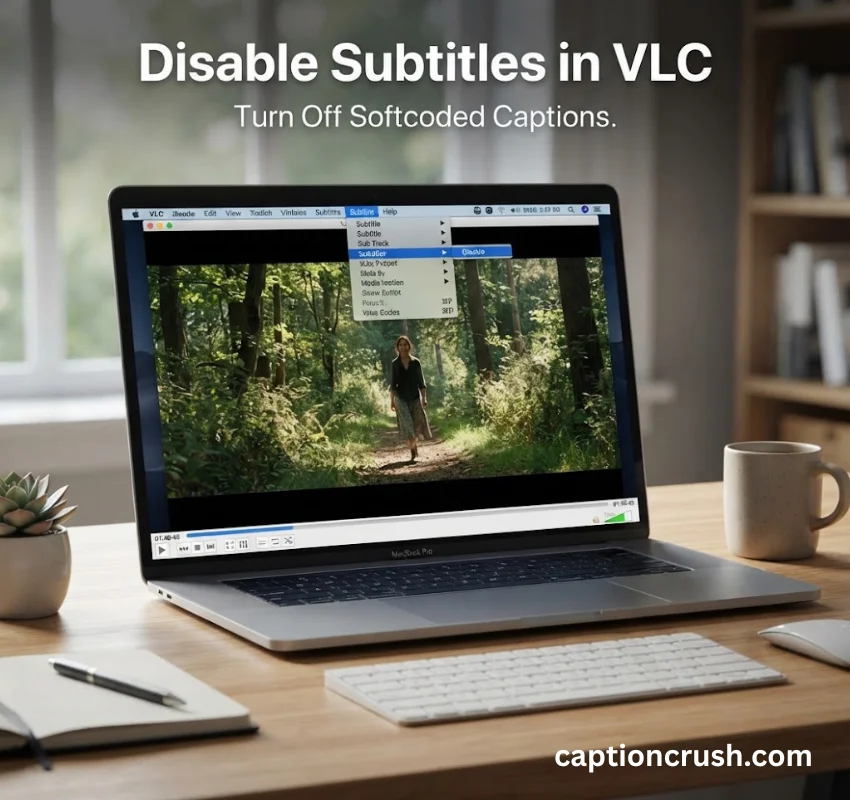
Disable the subtitle track in VLC. For softcoded subtitles, open the video in VLC Media Player, go to Subtitle, then Sub Track, and select Disable. This only changes playback. It does not alter or export a new file.
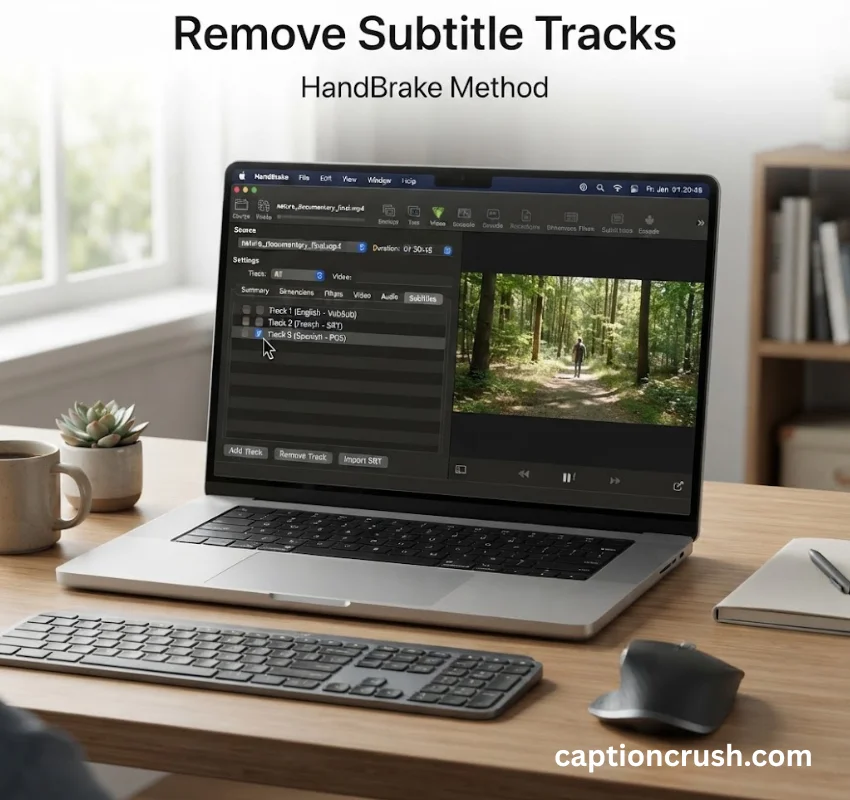
Strip subtitle tracks with HandBrake. HandBrake lets you open a video, go to the Subtitles tab, and clear every subtitle track before re-encoding. Unlike VLC, this actually produces a new file with the subtitle data removed.
Use a mobile caption remover app. Apps built for Android and iOS process video locally on your phone, no upload required. They are slower and less precise than cloud-based AI tools, but useful for quick, private edits on the go.

Remove Captions from Video Online for Free
Most AI-based tools let you remove captions from video online for free, at least for a first look. The catch is almost always in the fine print.
Free tiers typically cap you at a short preview, sometimes just the first few seconds of the clip, before asking for a paid plan or credits to unlock the full download. Fotor, for example, caps free video length at 60 seconds and exports only to MP4 on its free tier.
A free tool is genuinely enough if you only need a short clip, a quick test, or a low-stakes repost. For full-length footage, HD exports, or batch processing across multiple files, budget for a paid plan.
Remove Captions from Video Without Losing Quality
The technique behind quality-preserving removal is called AI inpainting, sometimes marketed as generative fill. The AI studies the pixels surrounding the caption, its color, texture, grain, and motion, then reconstructs that patch frame by frame so it matches the rest of the scene.
This is a real leap from older blur-and-smear methods, which just soften the caption area instead of rebuilding it. A blurred patch is obvious. A properly inpainted one usually is not, even at full resolution.
Quality can still slip in a few specific situations. Fast motion directly behind the caption gives the AI less consistent data to work from. Low-resolution source footage limits how much detail there is to reconstruct in the first place. And exporting at a lower bitrate than your original file will always cost you quality, regardless of how clean the caption removal itself was.
Best Tools to Remove Captions from Video
Picking the right AI caption remover depends on your caption type, your budget, and how long your clips are. Here is how the major options stack up.
| Tool | Caption type supported | Free limit | Max output | Standout feature |
|---|---|---|---|---|
| Vmake | Hardcoded, animated, scrolling | Free preview, credits for full export | Full resolution | Batch processing up to 30 videos |
| CreatOK | Hardcoded | Free monthly quota | Up to 4K | Lossless inpainting, fast turnaround |
| Media.io (AniEraser) | Hardcoded and softcoded | Free with limits | Varies | Manual brush + AI hybrid removal |
| Wink | Hardcoded, animated, multi-language | Free to start | Full resolution | Handles moving/scrolling text well |
| Fotor | Hardcoded, static text | 60-second free clips | MP4 only | Simple brush-and-generate workflow |
One important note if you are comparing tools right now: Wondershare has announced that AniEraser will shut down entirely by October 22, 2026, with paid subscriptions winding down starting September 22, 2026. It still works today, but it is not a safe long-term pick if you need an ongoing caption-removal workflow.
FAQs
How can I remove captions from a video?
Use an AI caption remover if the text is hardcoded, since it can detect and erase burned-in captions while rebuilding the background. If the captions are softcoded, disable or strip the subtitle track using VLC or HandBrake instead. The right method depends entirely on which caption type you have.
Can I remove captions from a video without losing quality?
Yes. AI tools that use inpainting reconstruct the area behind the caption using the surrounding pixels, so the output holds the same resolution and color depth as the source. Quality loss usually comes from re-compression on export or low-resolution source footage, not the removal process itself.
Can I remove captions from a video online for free?
Most AI caption removers offer a free tier, but it is usually limited to a short preview or a capped number of exports. Full-length or HD downloads typically require credits or a paid plan, so free works best for short clips or quick tests.
How do I remove permanently embedded captions from a video?
Permanently embedded, or hardcoded, captions cannot be turned off. You need an AI inpainting tool to erase and rebuild the frame, or you need to manually crop or cover the caption area in a video editor. There is no toggle for hardcoded text.
Can AI remove captions from videos?
Yes. AI models trained for video inpainting can automatically detect caption text across fonts, sizes, and animation styles, then reconstruct the background behind it frame by frame. This works on fixed subtitles, scrolling broadcast text, and animated caption effects in a single pass.
Conclusion
Clean, caption-free video comes down to one decision: know whether your text is hardcoded or softcoded before you pick a tool. Get that right, and an AI caption remover handles burned-in text in minutes, while VLC or HandBrake clears a subtitle track just as fast. As more creators repurpose long-form footage into short clips, having a reliable way to remove captions from video without losing quality is quickly becoming a standard part of the editing workflow, not an extra step.

Timmy Abroy is a content creator and the voice behind CaptionCrush, where he shares practical tips on social media captions, creator growth, and content strategy. When he’s not writing, he’s testing what actually gets people to stop scrolling.