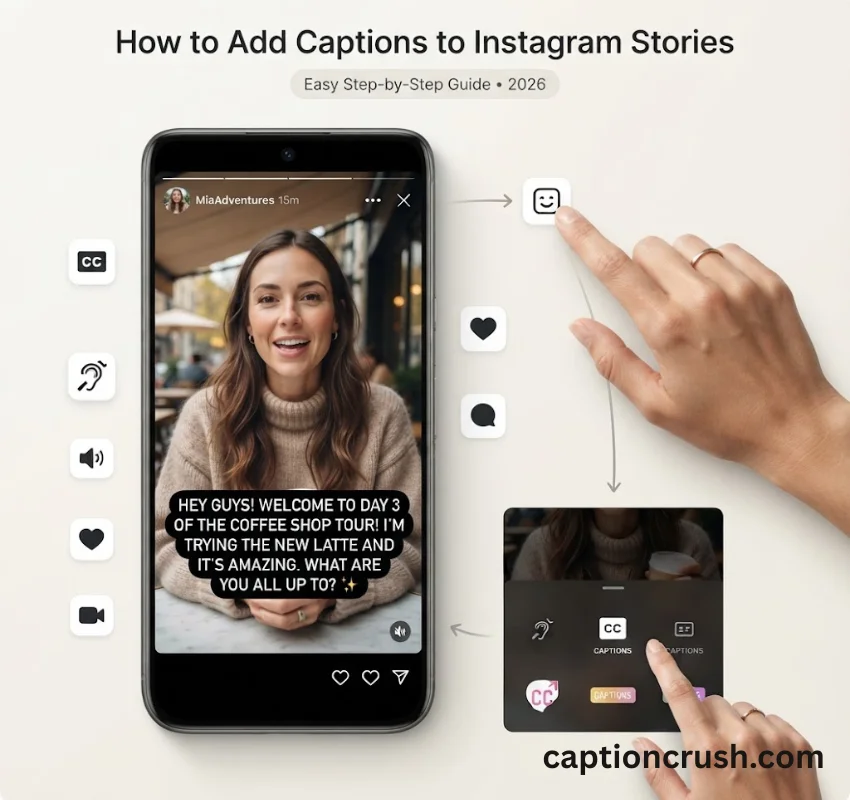
Around 85% of social videos get watched on mute. If your Instagram Story has no captions, most of your audience is scrolling past with the sound off and missing your message entirely. The fix takes under a minute.
This guide covers exactly how to add captions to Instagram Stories, why they matter, and what to do when the caption sticker won’t cooperate.
Table of Contents
Why Add Captions to Instagram Stories
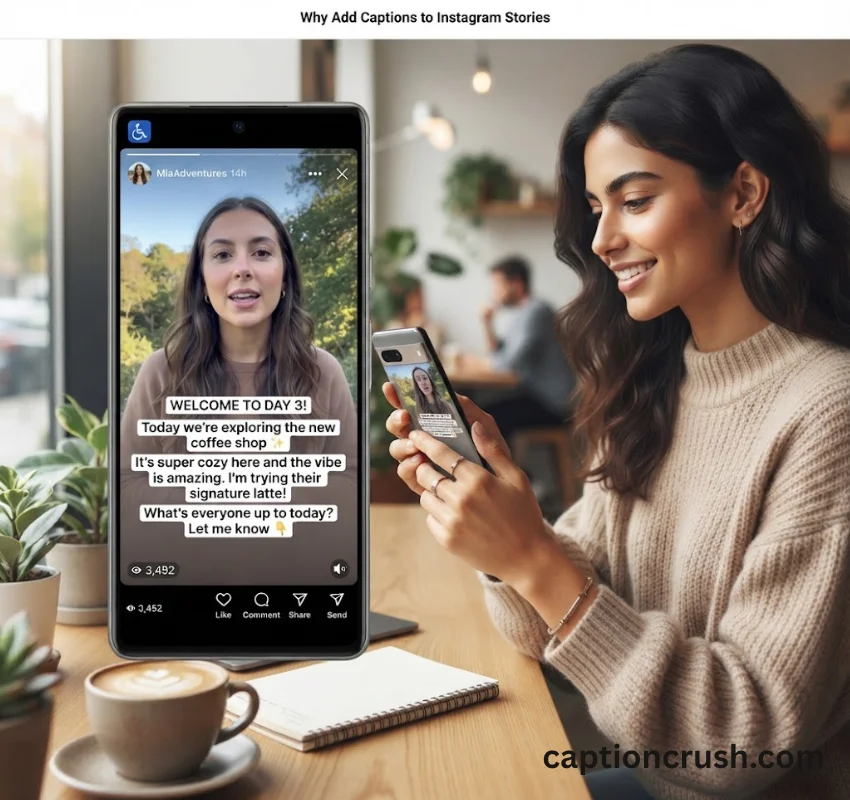
Captions turn your spoken words into on-screen text. That single change affects accessibility, watch time, and reach all at once.
Accessibility for deaf and hard-of-hearing viewers
The World Health Organization reports that over 5% of the world’s population, more than 430 million people, lives with disabling hearing loss. Without captions, your Story simply doesn’t reach them. With captions, it does.
Why most people watch Instagram Stories on mute
Instagram autoplays video without sound by default. Most viewers watch during a commute, at work, or in a waiting room where turning the volume on isn’t an option. Captions on Instagram Stories let your message land whether the sound is on or off.
How captions affect completion rate and reach
Instagram’s algorithm favors content people actually finish watching. When viewers understand your Story without audio, they stay longer instead of tapping away. That extra watch time is a real ranking signal Instagram uses to decide who sees your next post.
Must Visit: Remove Captions from Video: 6 Easy Ways to Get Clean, Caption-Free Videos
How to Add Captions to Instagram Stories (Step-by-Step)
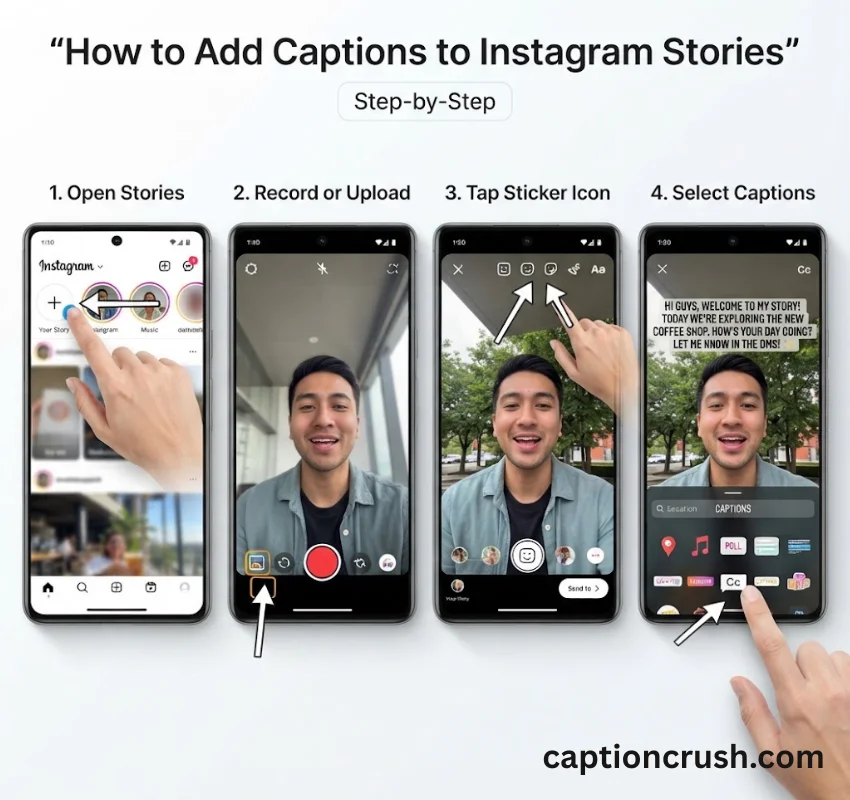
Instagram’s built-in captions sticker transcribes your audio automatically. Here’s how to add captions to your Instagram Story in a few taps.
Open the Instagram Stories camera and record or upload
Swipe right from your home feed, or tap your profile picture with the blue plus icon. Record a new clip or select one from your camera roll.
Tap the sticker icon and select “Captions”
Once your clip is loaded, tap the sticker icon (the small square smiley face) at the top of the screen. Scroll the sticker tray until you see the Captions sticker and tap it.
Turn on auto captions on your Instagram Story
As soon as you select the Captions sticker, Instagram automatically transcribes the audio and drops the text onto your video. This is how you turn on auto captions on Instagram Stories, no extra settings required.
Edit inaccurate auto-generated text
Automatic transcription makes mistakes, especially with names, slang, or background noise. Tap directly on any caption line to fix the wording before you post.
How to Style, Position, and Format Your Story Captions
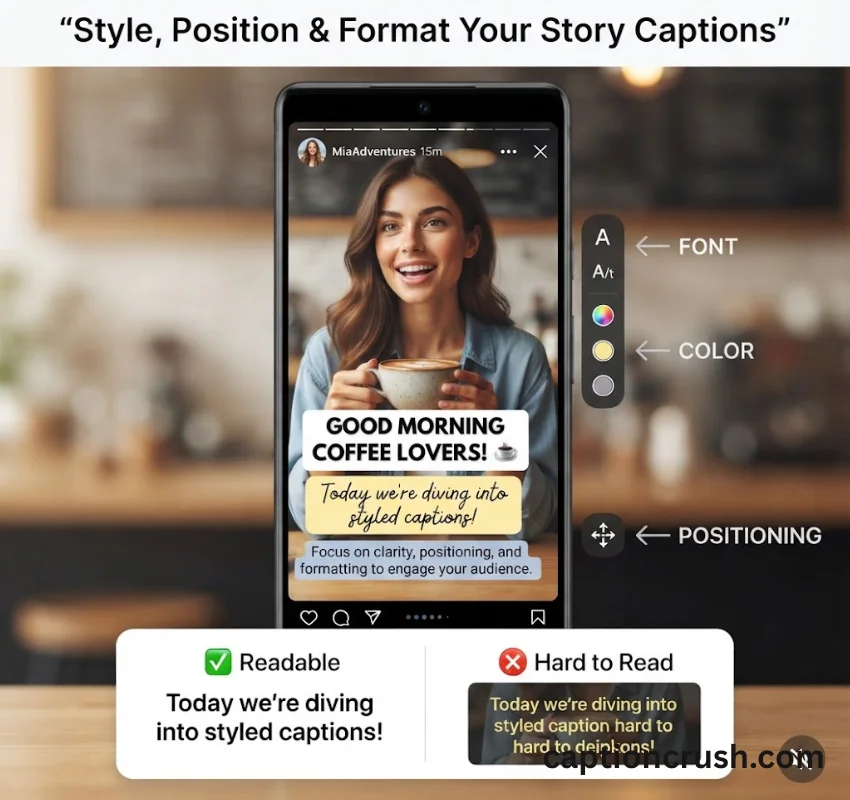
Raw auto captions work, but styled captions read better and match your brand.
Choosing readable fonts and colors
Tap the text style button above the caption box to cycle through font and color combinations. Pick a color with strong contrast against your background so the words stay legible even on a busy clip.
Positioning captions so they don’t block key visuals
Drag the caption box to a spot that doesn’t cover your face, a product, or on-screen text. The bottom third of the frame usually works best for Instagram Story captions.
Closed vs. open (burned-in) captions, what’s the difference
Instagram’s native captions are closed captions. Viewers can tap to turn them off, and the text won’t travel with the video if you repost it elsewhere. Open captions, the kind burned in by third-party editors, stay visible everywhere the clip goes, including TikTok or YouTube Shorts. If you plan to repurpose a video across platforms, open captions save you from recreating them each time.
Why Don’t I Have Captions on Instagram
If the caption sticker is missing or the text won’t generate, one of a few common issues is usually the cause.
App version and update issues
Older versions of the Instagram app sometimes drop newer stickers, including captions. Check the App Store or Google Play for a pending Instagram update and install it.
Language and region availability limits
Instagram’s automatic transcription doesn’t support every language yet. If you’re speaking a less common language or dialect, the sticker may fail to generate text or produce garbled results.
Video and audio quality problems affecting transcription
Background noise, low mic volume, or multiple people talking at once confuses the transcription engine. Record in a quieter space and speak close to the microphone for cleaner auto captions.
Other Ways to Insert Captions on Instagram
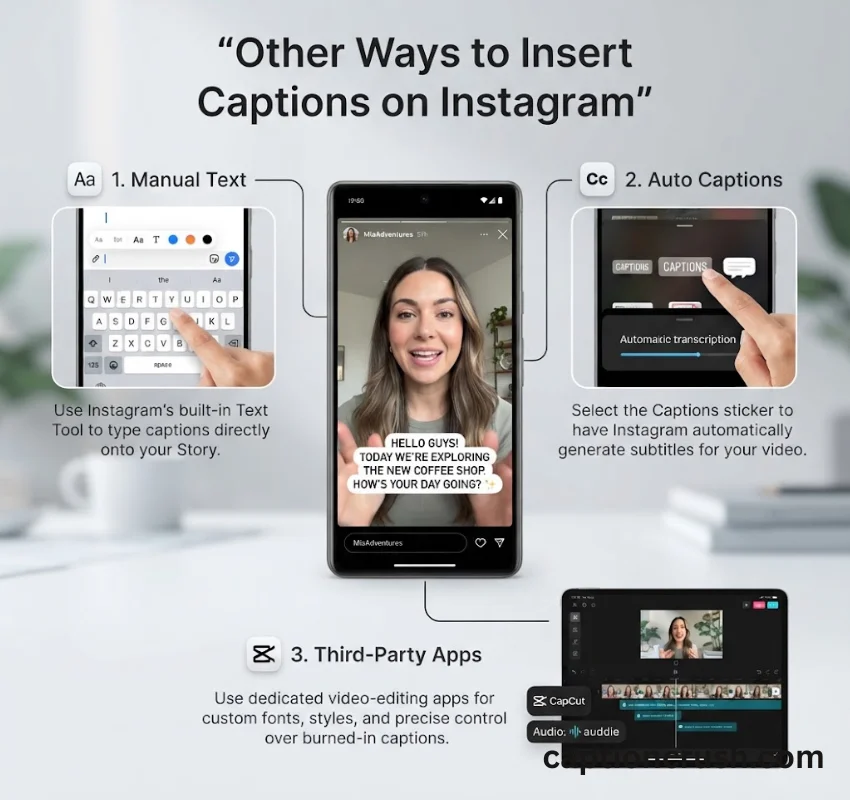
The Captions sticker isn’t the only option for getting text onto a Story.
Manual text overlays
Use Instagram’s regular text tool to type out key points yourself. This works well for short clips or when you want full control over wording, but it’s slower than auto captions for longer videos.
Third-party caption and subtitle apps
Tools like CapCut, Captions, Later, and Storrito generate styled, burned-in subtitles outside the Instagram app. Some, like Later, also let you schedule Stories in advance so captions are already in place before the post goes live.
When to use each method
Reach for the native sticker when you’re posting quickly and staying on Instagram only. Choose a third-party tool for branded content, multi-platform posting, or when you want dozens of style options instead of Instagram’s built-in set.
FAQs
Why don’t I have captions on Instagram?
Usually it’s an outdated app version, an unsupported language, or poor audio quality. Update the Instagram app first, then re-record in a quiet space if the sticker still won’t generate text.
How do I turn on auto captions on my Instagram story?
Open the sticker tray after recording or uploading your Story, then tap the Captions sticker. Instagram transcribes your audio automatically and adds the text to your video.
How do I turn on auto captions?
Tap the sticker icon at the top of the Stories camera, select Captions, and Instagram generates the text for you. No separate settings menu is needed.
How do I insert a caption?
Select the Captions sticker to auto-generate text, or use Instagram’s text tool to type your own caption manually and place it anywhere on the Story.
Conclusion
Adding captions to Instagram Stories takes one sticker tap and pays off in accessibility, watch time, and reach. Turn them on for every Story with speech, check the wording before you post, and your content works for viewers whether the sound is on or off.

Timmy Abroy is a content creator and the voice behind CaptionCrush, where he shares practical tips on social media captions, creator growth, and content strategy. When he’s not writing, he’s testing what actually gets people to stop scrolling.