Missing dialogue because your TV volume is low, or the accent on screen is hard to catch? Captions on Disney Plus fix that in under 10 seconds, on any device you own.
This guide covers exactly how to put captions on Disney Plus, whether you’re on a TV, phone, or laptop, plus what to do when subtitles refuse to show up.
Table of Contents
How to Put Captions on Disney Plus
Every Disney+ device uses the same core menu, just accessed a little differently depending on your remote or screen.
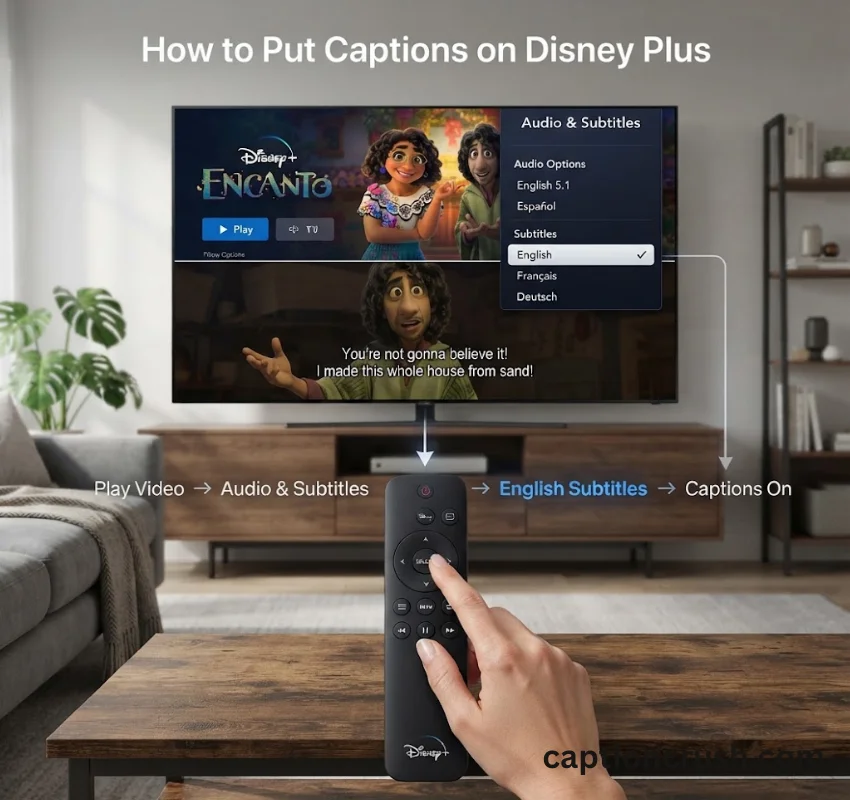
Open the Audio & Subtitles menu during playback
While your movie or show is playing, tap the screen or press your remote’s select button. Look for the Audio & Subtitles icon in the top right corner and select it.
Select your subtitle or closed caption option
A list of available languages and caption styles appears. Choose the option marked Subtitles, CC, or your preferred language.
Turn captions on or off in seconds
To disable them, open the same menu and choose Off under Subtitles. Disney+ offers subtitles and dubbing in 16 languages for its Originals and at least six languages for the rest of the catalog, according to Disney’s own language support page.
Must Visit: How to Add Captions to Instagram Stories: Easy Step-by-Step Guide (2026)
How to Add CC to Disney Plus on a TV
TV remotes vary more than any other device category, so Disney Plus closed captions work a bit differently depending on your streaming box.
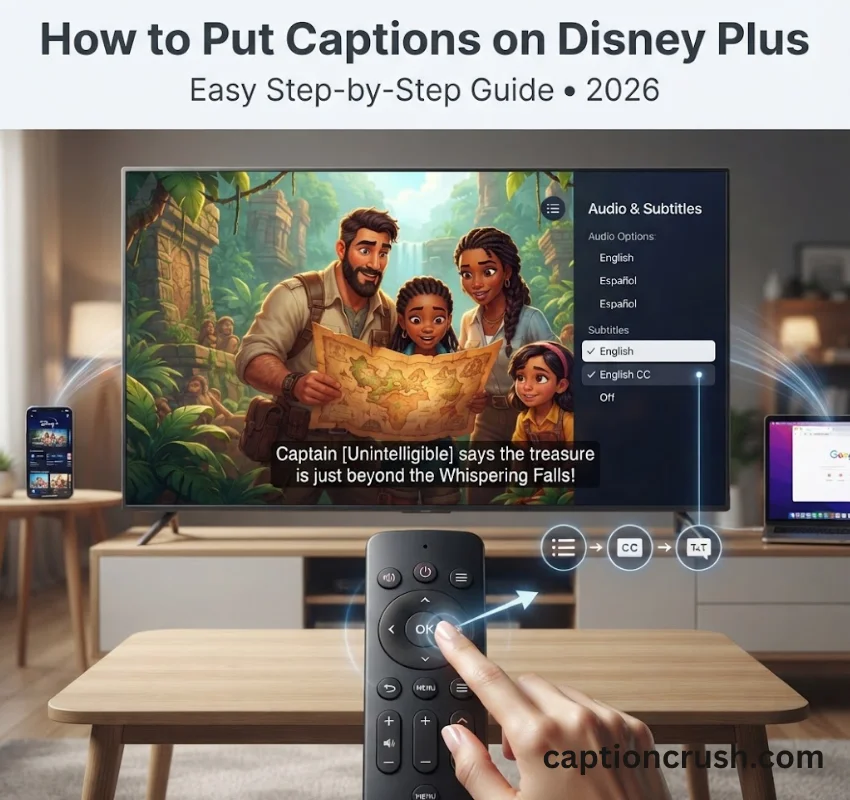
Roku, Fire TV, and Smart TV steps
On a Roku device, press the star (asterisk) button on your remote while a title is playing. This opens the options menu directly, no need to hunt through the on-screen icons. Select Captions Mode and choose On Always, On Replay, or Off. On Amazon Fire TV, press the Menu button on your Firestick remote instead, then select Subtitles.
Apple TV remote gesture for subtitles
Swipe up or down on the Siri Remote’s touch surface while your content plays. This brings up the Audio and Subtitles menu without leaving the video. Older second and third-generation Apple TV remotes use a center-button hold for the same result.
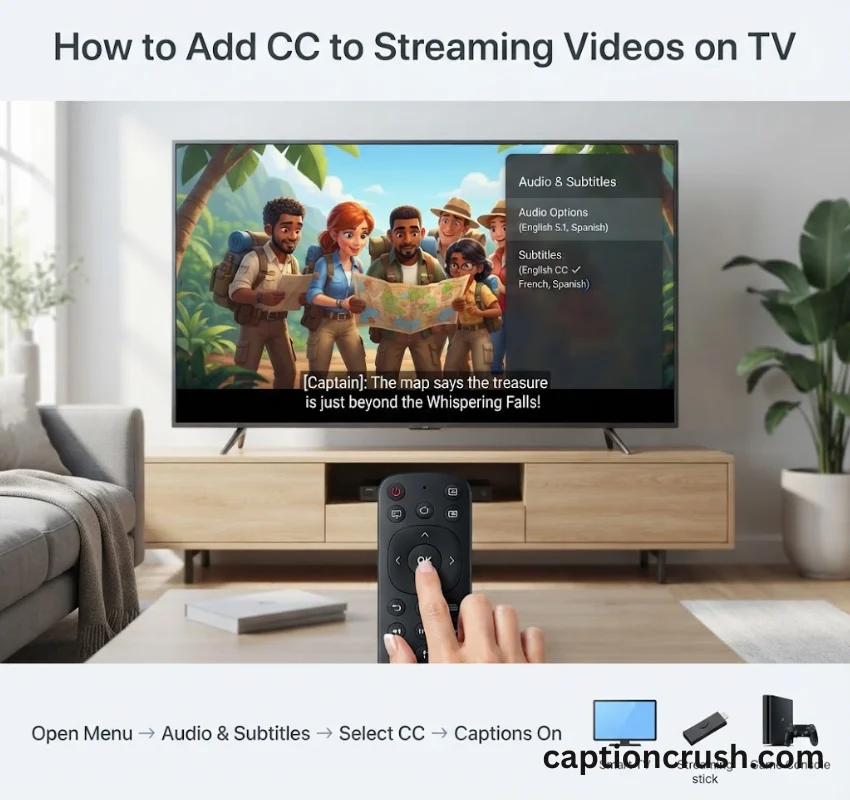
PlayStation and Xbox settings
On PlayStation, open Settings, go to Accessibility, then select Closed Captions and toggle Display Closed Captions on. Xbox follows a similar path through the console’s accessibility settings, separate from the in-app Disney+ controls.
How to Add CC to Disney Plus on Mobile, PC, and Browser
Away from the TV, adding captions takes even fewer steps.
iPhone and Android steps
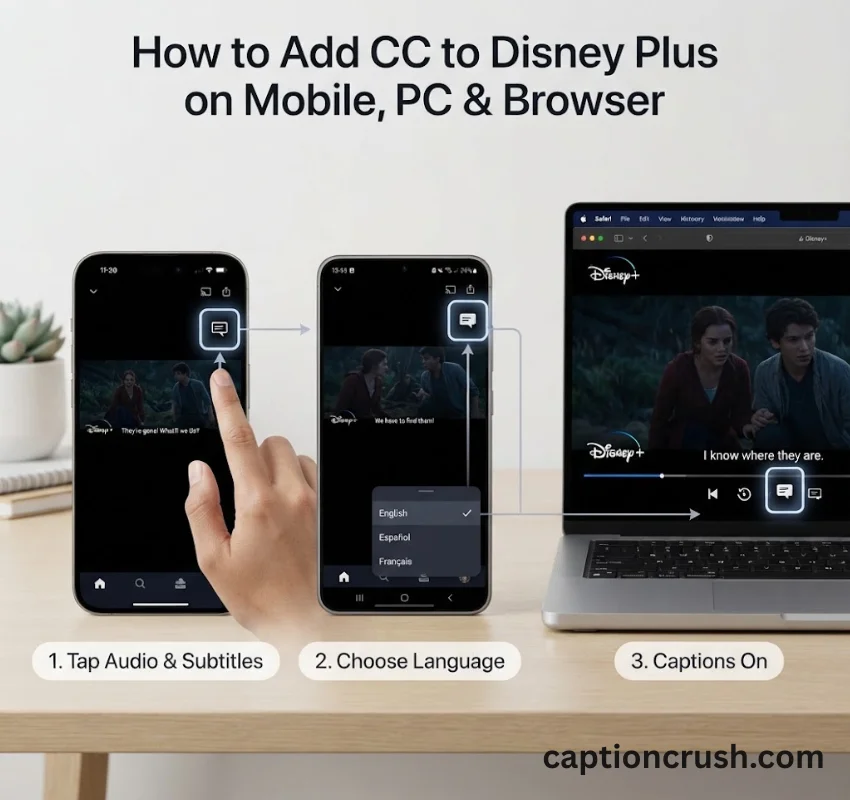
Tap the screen during playback, then tap the Audio & Subtitles icon in the top right corner. Pick your subtitle language or select Off to disable captions. The setting sticks for that title only, so you’ll repeat this for each new show or movie.
Windows and Mac browser steps
On Disney+ streaming through a web browser, click the same Audio & Subtitles icon during playback. Choose your subtitle language from the dropdown list, then click anywhere on the video to return to full playback.
How to Customize and Reposition Disney Plus Subtitles
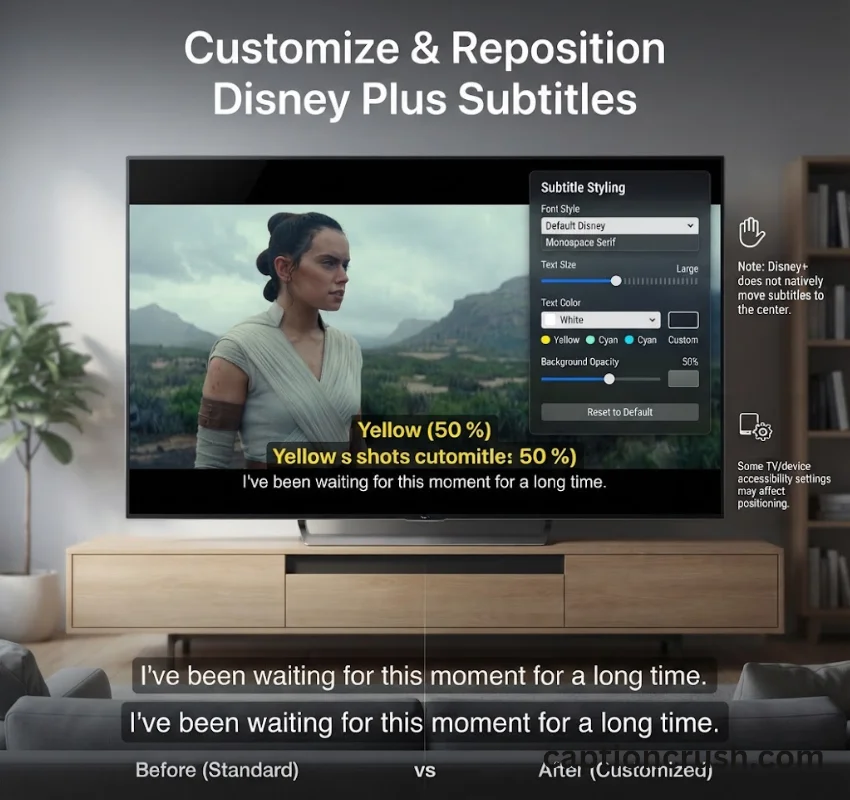
Disney+ gives you real control over how captions look, not just whether they show.
Changing font, size, and background opacity
Open the Audio & Subtitles menu, then select the gear or Settings icon next to the subtitle list. This opens Subtitle Styling, where you can adjust font, text size, color, and background opacity to make dialogue easier to read against bright or busy scenes.
How to make Disney Plus subtitles appear in the middle of the screen
Disney+ does not currently offer a built-in setting to move subtitle position from the bottom to the middle of the screen. Some smart TVs and set-top boxes apply their own system-level caption placement, which can shift Disney+ subtitles higher automatically. Check your TV’s or streaming device’s accessibility settings, separate from the Disney+ app, for a caption position control.
Why Won’t Disney Plus Let Me Use Subtitles
A few common issues explain most subtitle problems on Disney+.
Title or language limitations
Not every title carries the same language options. Older or regional content sometimes ships with fewer subtitle choices than newer Disney+ Originals, which Disney backs with a broader language library.
App version and cache issues
An outdated Disney+ app can drop subtitle functionality entirely. Update the app through your device’s app store, then restart it before trying again.
Profile-level caption settings not syncing to TV
Closed captions set at the device or system level, like a TV’s built-in CC setting, sometimes conflict with the in-app Disney+ subtitle menu. If captions won’t toggle inside Disney+, check your TV’s general accessibility settings for a competing caption setting and turn it off there first.
FAQs
How do I put captions on Disney+ on my TV?
Open the Audio & Subtitles menu during playback using your remote, then select your subtitle language or CC option. Roku users can press the star button for a shortcut straight to captions.
How do I add CC to Disney?
Tap or click the Audio & Subtitles icon in the top right corner of the screen while a title plays, then choose Subtitles or CC from the list.
Why won’t Disney Plus let me use subtitles?
Usually it’s a limited-language title, an outdated app, or a conflicting TV-level caption setting. Update the app first, then check your device’s own accessibility menu.
How do I make Disney+ subtitles appear in the middle of the screen?
Disney+ has no native setting for this. Look in your TV or streaming device’s accessibility settings instead, since some devices reposition captions system-wide.
Conclusion
Adding captions on Disney Plus takes one tap of the Audio & Subtitles icon on any device. Update your app, check your device’s own caption settings if something won’t sync, and dialogue stays clear no matter where you’re streaming.

Timmy Abroy is a content creator and the voice behind CaptionCrush, where he shares practical tips on social media captions, creator growth, and content strategy. When he’s not writing, he’s testing what actually gets people to stop scrolling.