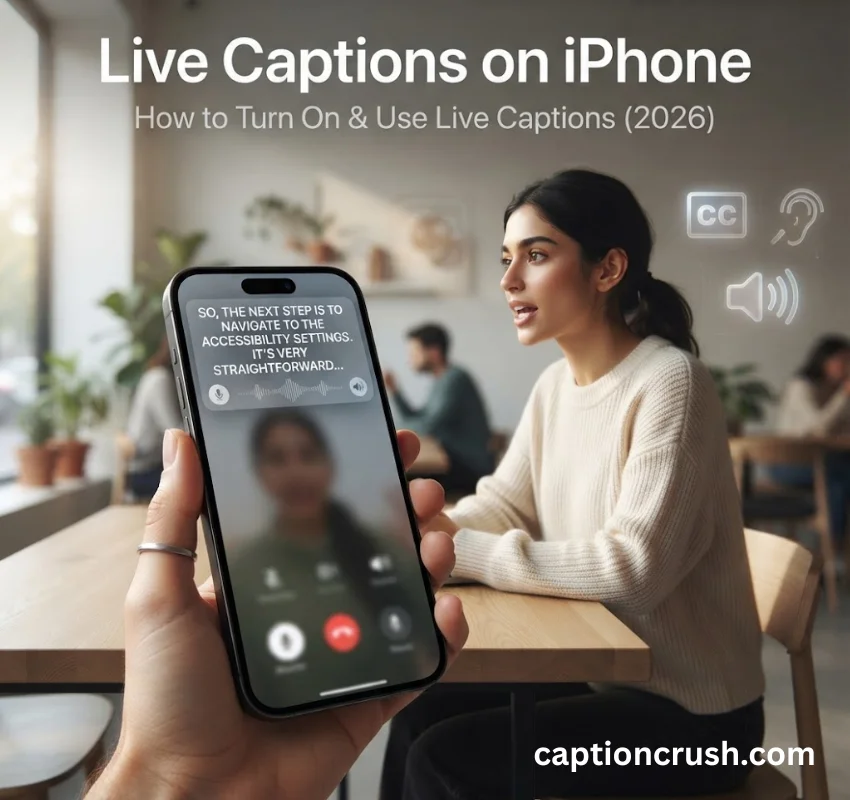
Your phone rings, you cannot turn up the volume, and you still need to know what the other person is saying. Live Captions on iPhone solves that in real time, turning any spoken audio into on-screen text without an internet connection. Here is exactly how to turn it on, use it, and fix it when it will not show up.
Table of Contents
What Are Live Captions on iPhone
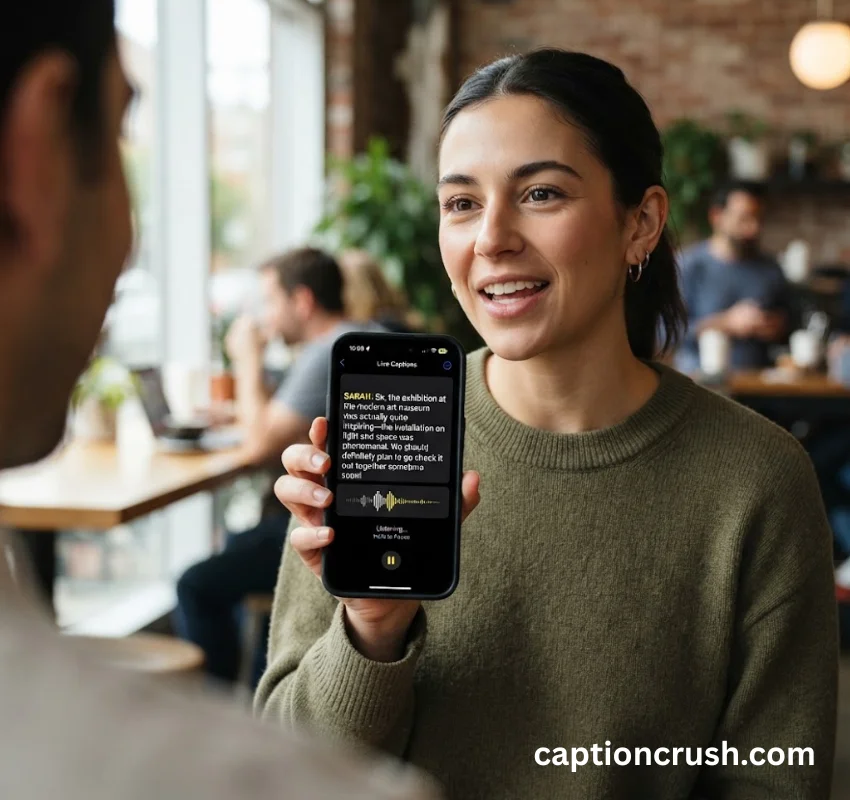
Live Captions is an Apple accessibility feature that converts spoken audio into text and displays it in a floating box on your screen, as it happens. It works on FaceTime calls, phone calls, videos in Safari, podcasts, and even live conversations picked up by your iPhone’s microphone.
The feature runs entirely on the device’s Neural Engine, Apple’s dedicated chip for machine learning tasks. That matters because it means no audio gets sent to Apple’s servers for transcription, so Live Captions works offline and keeps the conversation private.
People often mix up three separate Apple features, so here is the difference:
| Feature | What it does |
|---|---|
| Live Captions | Transcribes any audio in real time (calls, mic, media) |
| Live Listen Captions | Streams audio to AirPods or hearing devices and shows captions via Apple Watch |
| Subtitles & Captions | Displays pre-written closed captions baked into movies and shows |
Apple first introduced Live Captions in iOS 16 in 2022, alongside a wave of accessibility updates, and has expanded it to visionOS and watchOS since. The Apple Support page on Live Captions confirms it now covers FaceTime, spoken audio, and system sound as of iOS 26.
Who benefits most from Live Captions on iPhone? Anyone who is deaf or hard of hearing gets the clearest win, but the feature also helps people in loud environments, on muted calls, or watching a video without headphones late at night.
Must Visit: Snow Day Captions: 150+ Cute, Funny & Cozy Captions for Instagram (2026)
How to Turn On Live Captions on iPhone
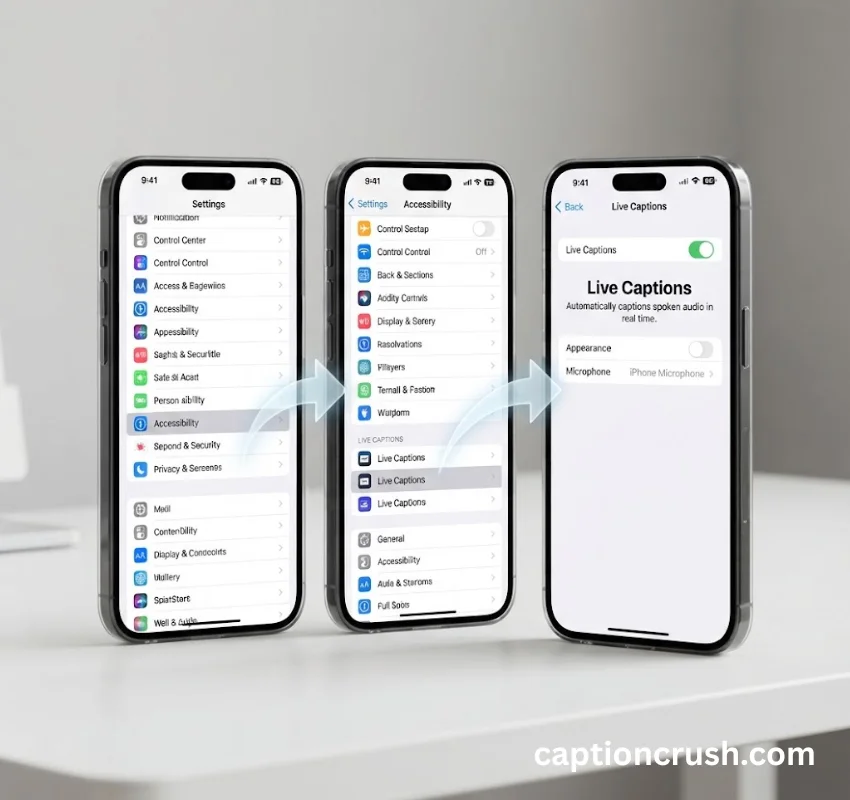
Live Captions lives inside Settings, not Control Center by default. Go to Settings > Accessibility > Live Captions, then toggle it on. A floating caption box will appear immediately at the bottom of your screen.
Before you flip the switch, check two things: your iPhone model and your language. Live Captions requires an iPhone with the A12 Bionic chip or later (iPhone XS and newer), because the on-device transcription depends on Neural Engine processing power that older chips do not have.
Language support is also limited. As of the current release, Live Captions supports:
- English (United States, United Kingdom, Australia, Canada, India, Singapore)
- Spanish (Spain, Mexico, United States)
- French (France, Canada)
- German (Germany)
- Japanese (Japan)
- Korean (South Korea)
- Cantonese (China mainland, Hong Kong)
- Chinese (China mainland)
If your iPhone’s language and region are set outside this list, the toggle may not function correctly, even if it appears in Settings.
Once enabled, you can customize the experience under Appearance: adjust text size, font color, and background opacity so captions are easy to read in bright or dark rooms. You can also choose to Keep Call Captions for one minute or one hour after a call ends, useful if you want to reread what was said.
How to Use Live Captions on iPhone

The floating caption widget works the moment it is turned on, and you control what it listens to from a small menu on its left edge. Tap the microphone icon to caption a live conversation, or the speaker icon to caption whatever audio is playing on your iPhone.
During a FaceTime call, Live Captions transcribes both sides of the conversation directly under the video window, so you never lose the thread even if audio cuts out. The same works for standard phone calls once Live Captions is enabled system-wide.
For everyday use, three settings make the feature far more practical:
- Full-screen mode: tap the expand icon on the widget to make captions easier to read from across a room
- Text customization: increase font size and contrast for low-light or high-glare environments
- Control Center shortcut: swipe down, tap the + button, select Add a Control, then choose Live Captions under the Hearing Accessibility section
Adding the Control Center button means you do not have to dig through Settings every time. One tap turns captions on before a meeting, a call, or a noisy commute.
How Accurate Is Live Captions on iPhone

Live Captions is genuinely useful but not perfect, and Apple does not market it as a substitute for professional transcription. Real-world testing shows it handles clear, single-speaker speech well, while overlapping voices, fast talkers, and music lyrics trip it up more often.
Because the system processes audio as it hears it, Live Captions sometimes rewrites the beginning of a sentence after hearing the end, correcting punctuation or swapping a misheard word once context becomes clear. This is the same self-correcting behavior found in iPhone’s dictation feature, and it can make the caption box feel like it is stuttering slightly behind real speech.
Users in the deaf and hard-of-hearing community, including members of active Facebook accessibility groups and threads on the HearingTracker forum, report that Live Captions works best as a supplement to hearing aids or cochlear implants, not a replacement. Background noise, multiple speakers talking at once, and heavy accents remain the biggest accuracy gaps.
Music is its own challenge. Straightforward, clearly enunciated lyrics transcribe reasonably well, but fast or layered rock and rap vocals often confuse the model. If you need accurate song lyrics, Apple Music’s built-in Live Lyrics feature will almost always outperform Live Captions, since it pulls from licensed lyric databases rather than guessing from audio.
Live Captions on Apple Watch and Common Fixes
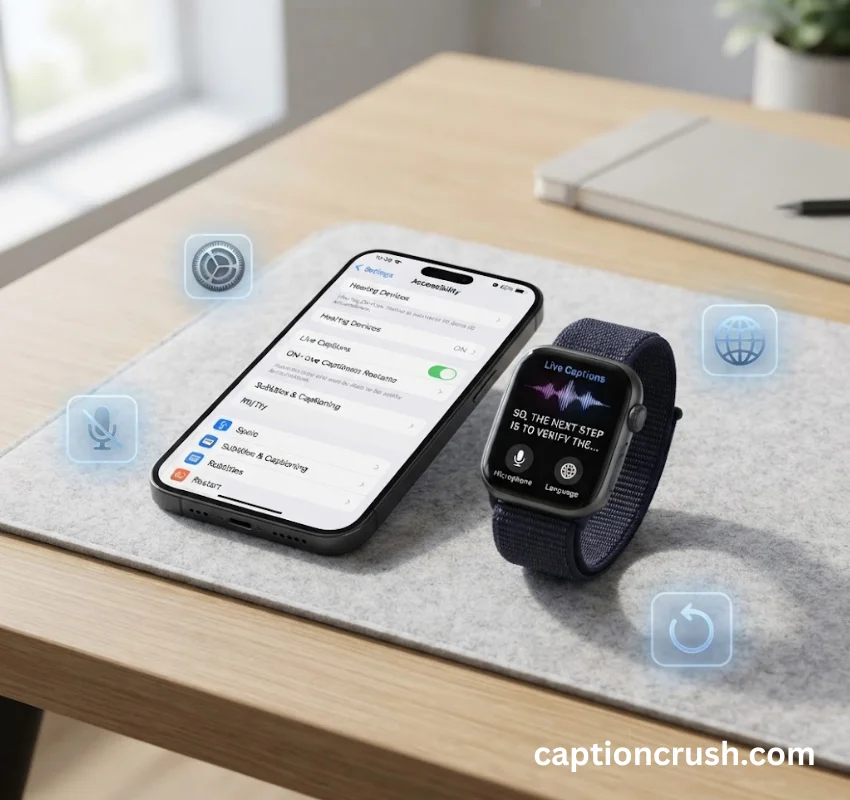
You can extend Live Captions to your Apple Watch through a feature called Live Listen Captions, which streams audio and displays text on your wrist. This setup helps most during in-person conversations, when pulling out your phone would be awkward.
To set it up: on iPhone, go to Settings > Accessibility > Audio & Visual > Live Listen and turn on Remote Control. Then, on Apple Watch, open Control Center, tap Edit, add the Hearing button, and tap Done. From there, tap Hearing, turn on Live Listen, then select Live Listen Captions.
Why doesn’t my iPhone have live captions? Four causes explain almost every case:
- Your iPhone uses a chip older than the A12 Bionic (iPhone X or earlier)
- Your language and region setting falls outside the supported list
- Your iOS version predates iOS 16, when the feature launched
- Live Captions has not been turned on in Settings > Accessibility
If the toggle is visible but captions never appear, restart the iPhone and confirm microphone or audio permissions have not been restricted under Screen Time. Apple’s own accessibility documentation confirms these are the most common blockers reported to support.
FAQs
What are live captions on an iPhone?
Live Captions on iPhone is an accessibility feature that transcribes spoken audio into on-screen text in real time. It works on phone calls, FaceTime, videos, podcasts, and live conversations, processing everything on-device through the Neural Engine.
Why doesn’t my iPhone have live captions?
Your iPhone likely does not have Live Captions because it uses a chip older than the A12 Bionic, your device language falls outside the supported list, or your iOS version is older than iOS 16. Check Settings > Accessibility > Live Captions to confirm availability.
How do I turn on captions on my iPhone?
Go to Settings > Accessibility > Live Captions and toggle it on. A floating caption box appears immediately, and you can customize text size and color under the Appearance menu.
Where is Live Caption in settings?
Live Captions is located under Settings > Accessibility, in the Hearing section. It sits alongside related features like Live Listen, Sound Recognition, and RTT.
Conclusion
Live Captions on iPhone turns any spoken audio, from FaceTime calls to street conversations, into readable text in seconds, all without leaving your device. Turn it on once under Settings > Accessibility, pair it with Apple Watch for hands-free use, and pair it with hearing devices when accuracy matters most.

Timmy Abroy is a content creator and the voice behind CaptionCrush, where he shares practical tips on social media captions, creator growth, and content strategy. When he’s not writing, he’s testing what actually gets people to stop scrolling.