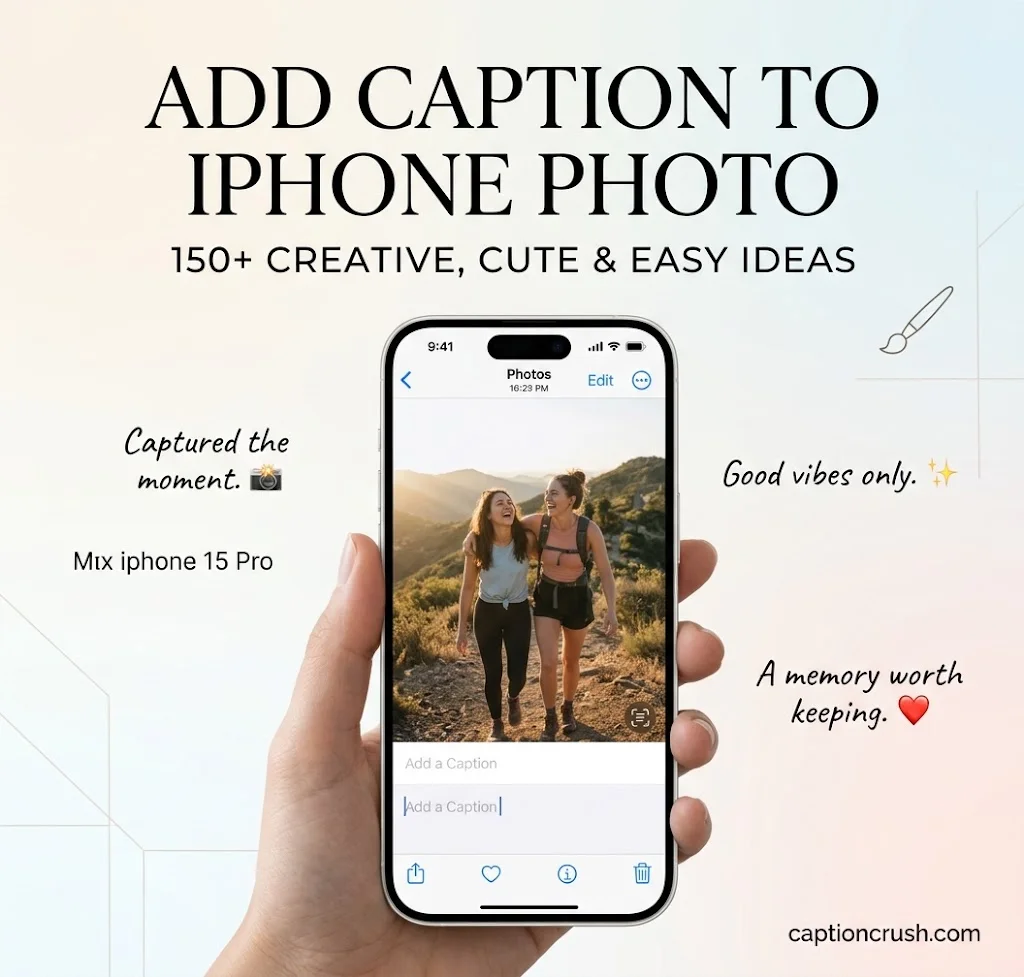
Want to add caption to iPhone photo? It takes about ten seconds. Open the Photos app, swipe up, and tap Add a Caption.
Below, you’ll find both ways to caption a photo, plus 150 caption ideas you can copy and use today.
Table of Contents
How to Add Caption to Iphone Photo

The built-in Photos app is the fastest way to add a caption. It needs no extra app and no sign-up.
How do I add a caption to a photo on iPhone?
- Open the Photos app and tap a photo.
- Swipe up on the photo to open the info panel.
- Tap Add a Caption and type your words.
- Tap Done to save.
That’s it. The caption is saved with the photo. If you don’t see the option, update iOS in Settings, General, Software Update. Users on the Apple Community have asked about this exact step, and an older iOS version is the common fix.
What is the difference between a caption and text on a photo?
A caption is metadata. It sits behind the photo and stays hidden. Text added with Markup is part of the picture itself. Use a caption to organize. Use text to share.
Can I add a caption with my voice?
Yes. Tap the caption field, then use voice to text (dictation) on the keyboard. Photo organizer Arrange Wander Focus points out it helps when you are one-handed, and the iPhone adds punctuation for you.
Can I search for a photo by its caption?
Yes. Search any word from the caption inside Photos. Type “paw” or “beach,” and the photo shows up. You can also add keywords to make photos even easier to find.
Can I add captions on iCloud.com?
Yes. Sign in at iCloud.com/photos, open a photo, and select the Info button. You can add a title, caption, location, keywords, and star ratings, as shown in Apple’s iCloud guide. If the photo is in an iCloud Shared Photo Library, everyone in the library sees your changes.
Are captions the same as subtitles or Live Captions?
No. Photo captions are notes on pictures. Subtitles and closed captions show words for video and audio. Live Captions turn spoken audio into text on screen.
Your iPhone photo captions can make everyday moments even more memorable, especially when you’re looking back on a fun weekend. For more ideas to capture those recent memories, explore these last weekend captions for fun, cute, and unforgettable posts.
How to Add Text to a Photo on iPhone (Markup and Apps)

Want words to show on the picture? Use Markup or a text editor app.
How do I add text to a photo on iPhone with Markup?
- Open the photo in Photos and tap Edit.
- Tap the Markup icon.
- Tap the + button, then choose Text.
- Double-tap the box and type.
- Change the font, color, alignment, and size, then tap Done.
Apple explains more in its guide to adding text, shapes, and stickers with Markup.
Which apps add text to iPhone photos?
These apps give you more fonts and effects:
- PicWish: add text, then adjust the background, outline, shadow, and opacity.
- Snapseed: open Tools, tap Text, then edit color, opacity, and style.
- Phonto: a wide choice of fonts, colors, and effects.
- Picsart: large font library, curved text, and uploads of your own .ttf fonts. Some fonts and styles need a paid plan.
- Captioned: a simple photo captioning app. It’s free, with in-app purchases for extra fonts.
Which method should I pick?
| Method | Cost | Best for |
|---|---|---|
| Photos caption | Free | Searching and organizing |
| Markup text | Free | Quick text on a photo |
| Apps like PicWish, Snapseed, Phonto, Picsart | Free or paid | Fonts, effects, social posts |
Keep a clean copy. Save the edited image as a new file. Then your original photo stays untouched.
150 Creative, Cute & Easy Caption Ideas for iPhone Photos
Copy any line below, or tweak it to fit your photo. Each group has its own mood.
30 creative photo captions for iPhone pictures
Use these for artsy shots, edits, and moody light.
- Frozen in a frame, kept in my camera roll.
- Today, in pixels and light.
- A tiny story with a big feeling.
- Caught between a blink and a memory.
- Plot twist: this one made the cut.
- Light did the talking here.
- A moment I did not want to lose.
- Shot on iPhone, shaped by mood.
- Some days deserve a footnote.
- Chasing golden light and good angles.
- This frame has a heartbeat.
- Small scene, loud memory.
- Edited by sunshine.
- Paint it with shadows, caption it with soul.
- Here is proof the day was good.
- Swipe up for the story behind this shot.
- A picture is a pause button.
- Filed under: moments worth keeping.
- Softly lit, deeply loved.
- Made of colors I can’t name.
- Every photo is a postcard to my future self.
- The mood: quietly bright.
- Found beauty in an ordinary corner.
- Not perfect, just real.
- A little glow goes a long way.
- Memory saved, heart synced.
- Framed by chance, kept by choice.
- The view looked better in person, but this comes close.
- Pixels fade, feelings stay.
- Another page for my camera-roll diary.
30 cute photo captions for iPhone pictures
Perfect for selfies, babies, pets, and sweet moments.
- Sweet moments, soft hearts.
- Cuteness overload, saved forever.
- Just a little ray of sunshine.
- Smiles look good on everyone.
- My heart in one photo.
- Happy vibes only, please.
- Tiny joys, big grins.
- Cuter in real life, promise.
- Warm hugs and cozy days.
- Hello, little happiness.
- Sugar, spice, and everything nice.
- This face makes my day.
- Pocket-sized joy.
- Dreaming in pastel.
- Be kind, be cute, be you.
- Giggles included.
- Little moments, huge love.
- Aww, I can’t even.
- Bright eyes, brighter day.
- Wrapped in good vibes.
- Snuggle season is here.
- A heart full of sprinkles.
- Cute is my default setting.
- Sunshine in human form.
- Spreading smiles like confetti.
- Always chasing the cozy.
- Love at first snap.
- Soft hearts, sweet days.
- Rosy cheeks and happy cheeks.
- Too cute to keep to myself.
30 easy and short photo captions
Short lines fit Markup text and small spaces best.
- Good day.
- Simply me.
- Just because.
- Mood.
- Pure joy.
- Feeling good.
- Hello, weekend.
- Take it easy.
- Cheers to today.
- Right now.
- Be here now.
- Small wins.
- Fresh start.
- Vibes on.
- Keep smiling.
- Lovely day.
- All good.
- Stay golden.
- Simple joys.
- Today’s pick.
- Good light.
- Hi, it’s me.
- Calm and bright.
- One moment.
- Sweet and simple.
- Only good things.
- Pause and enjoy.
- Happy place.
- Clear skies.
- Here we go.
20 funny photo captions
Use these when the photo took way too many tries.
- I woke up like this. Then I used a filter.
- Not a photographer, but my phone is trying.
- 97 takes, 1 keeper.
- My camera roll is 90% this angle.
- Please ignore my storage warning.
- Zoomed in so you can’t see the mess.
- This took longer than it should have.
- Photogenic on a good-lighting day only.
- Professional overthinker, amateur photographer.
- Looking for the cute side. It’s this one.
- Auto-focus decided to be dramatic.
- Me, pretending I didn’t pose.
- If lost, return to the nearest snack.
- My thumb is in the frame. It’s art.
- Just here for the good lighting.
- Crop first, ask questions later.
- Blink and you’ll miss my best angle.
- This is my serious face. Really.
- Edited for fun, not for taxes.
- Next time, I’ll bring a tripod. Maybe.
20 travel and nature photo captions
Great for hikes, beaches, road trips, and city walks.
- Chasing sunsets and cool breezes.
- Lost in the best way.
- The trail called, so I answered.
- Salt air and slow mornings.
- Mountains are calling, and I’m on the way.
- Wander often, wonder always.
- City lights, quiet thoughts.
- Green leaves, deep breaths.
- Miles from ordinary.
- Sand between my toes, nowhere to be.
- Collecting views, not things.
- Golden hour never gets old.
- Take me to the lake.
- Where the road bends, the story starts.
- Wildflowers and wide skies.
- Fresh air, full heart.
- Waves, wind, and a little wonder.
- This view is worth the climb.
- Sunrise first, coffee second.
- Passport stamped, memories made.
20 friends and family photo captions
Use these for group shots, holidays, and get-togethers.
- Good people make good days.
- My favorite people, all in one frame.
- Home is wherever you are.
- Family: where the stories start.
- Better together, always.
- Friends are the family we pick.
- Laughing until our cheeks hurt.
- Squad goals, snapshot edition.
- Same crew, new memories.
- Love, loud and messy.
- Tables full, hearts fuller.
- Where we are, joy follows.
- Making memories with my favorite humans.
- Side by side, through it all.
- The people who make life brighter.
- Weekend with my people.
- Our little circle, my big world.
- Three cheers for the ones who stay.
- Good company, great photo.
- Gathered, grateful, and grinning.
Tips to Write Better iPhone Photo Captions

Good captions are short, clear, and easy to find later. A few small habits go a long way.
- Keep it short. Short, meaningful text has more impact than a long line, as PicWish also notes.
- Use contrast. Pick a text color that stands out from the background.
- Protect the subject. Don’t cover faces or key details.
- Match the font to the mood. Soft fonts suit cute photos. Bold fonts suit funny ones.
- Add keywords. Use names, places, and dates so photo search works well.
- Caption right away. You’ll remember the details while they’re fresh.
- Add emojis or hashtags for Instagram. Keep them in the post, not buried in the image.
- Write clearly. Plain words help everyone read your text.
FAQs
Is there a way to add a caption to a photo on iPhone?
Yes. Open the photo in the Photos app, swipe up, and tap Add a Caption. Type your text and tap Done.
Can I add text to a photo on iPhone?
Yes. Tap Edit, then Markup, then the + button, and choose Text. You can also use apps like PicWish, Snapseed, Phonto, or Picsart.
How do I insert a caption on a photo?
For a hidden, searchable caption, use the Add a Caption field in Photos. For words shown on the image, use Markup or a text editor app.
Can an iPhone add captions?
Yes. The iPhone adds photo captions in Photos, and it can show subtitles and Live Captions for video and audio.
Conclusion
You now know two simple ways to add a caption to an iPhone photo. Use the Photos app for a hidden, searchable caption. Use Markup or a text editor app like PicWish, Snapseed, Phonto, or Picsart for words on the image. Keep each line short, add keywords for easy search, and pick any of the 150 ideas above. Try one on your next shot.

Timmy Abroy is a content creator and the voice behind CaptionCrush, where he shares practical tips on social media captions, creator growth, and content strategy. When he’s not writing, he’s testing what actually gets people to stop scrolling.