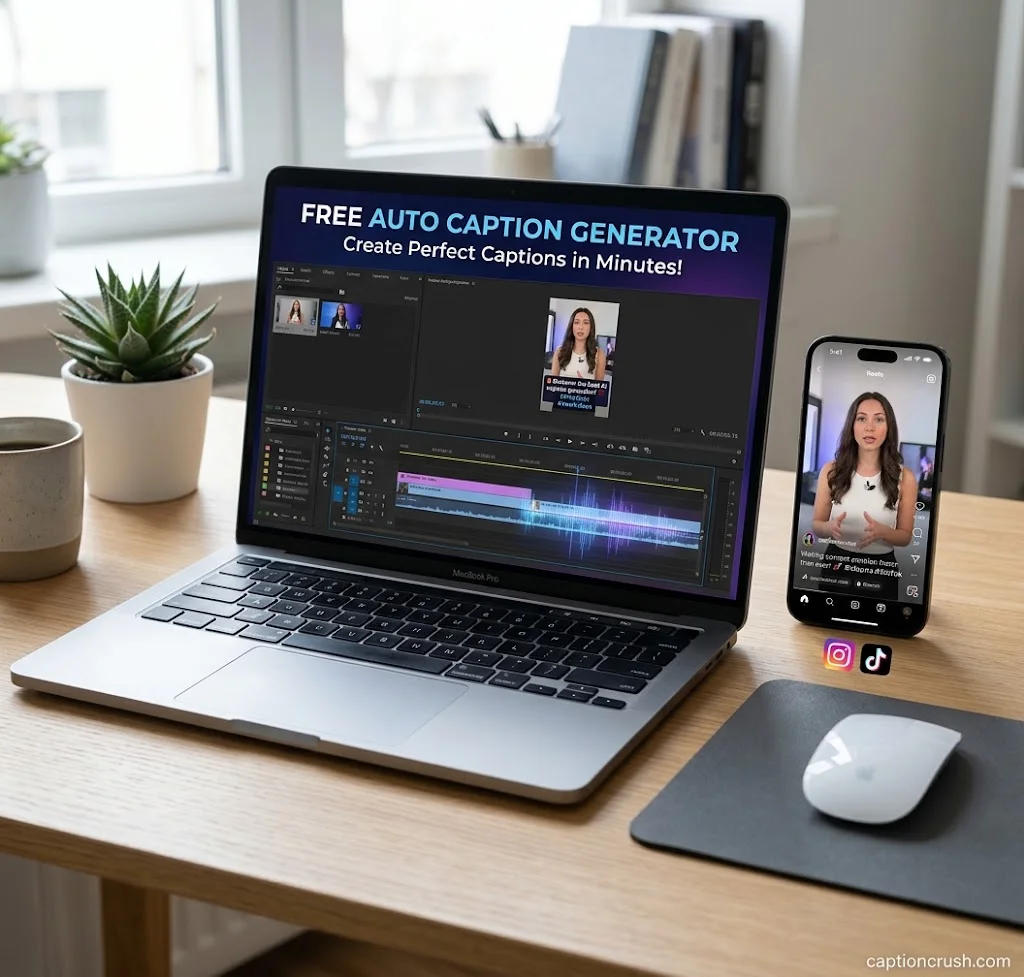
A free auto caption generator turns your speech into timed on-screen text in minutes. No typing. No hours of editing.
This matters because VEED reports that around 85% of mobile videos are watched without sound. If your Reels, TikToks, or YouTube Shorts have no captions, many people will scroll past. Here is how these tools work, which ones to try, and how to get clean, accurate results.
Table of Contents
What Is a Free Auto Caption Generator and How Does It Work?
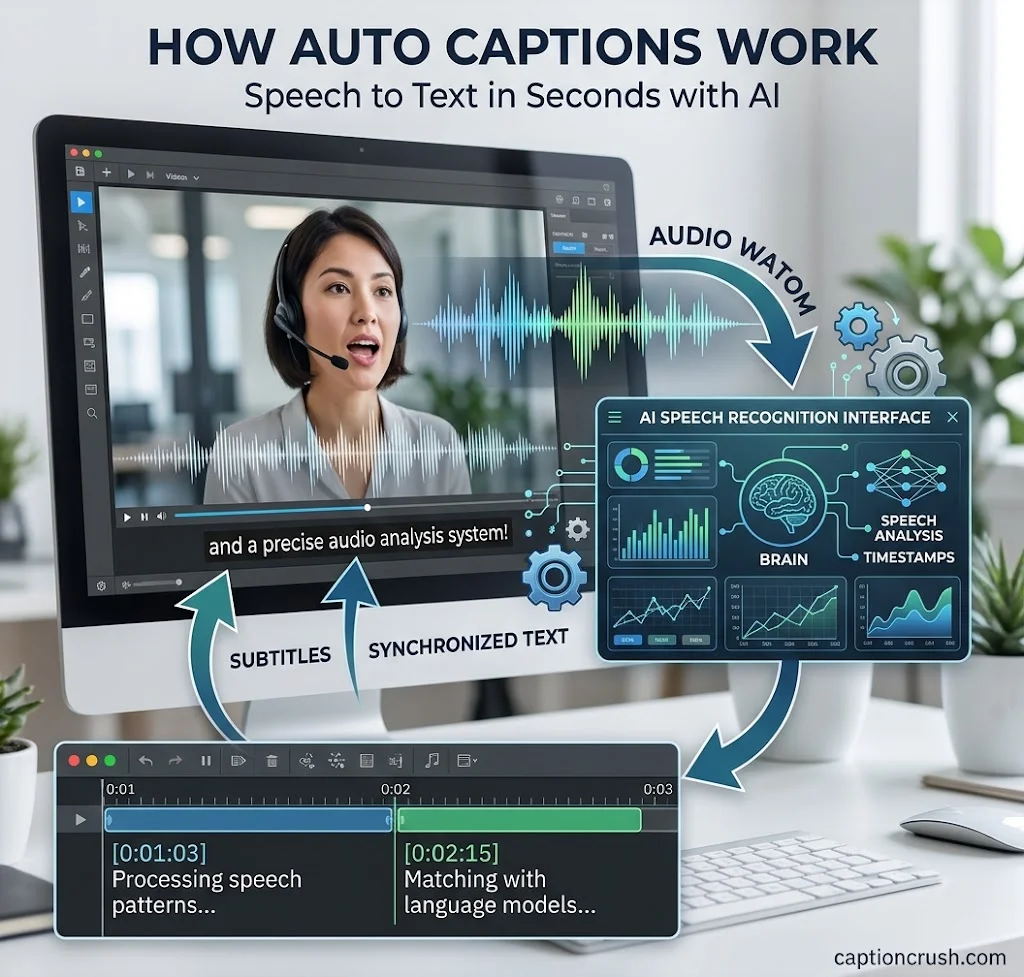
A free auto caption generator is an AI captioning tool that listens to your video and writes the words for you. Here is the simple version of how it works.
Auto captions use Automatic Speech Recognition (ASR). Canva explains that these are computer-made transcripts shown in sync with the spoken words. The tool does four things:
- It reads the audio track of your video.
- It turns speech into text using speech-to-text AI.
- It adds timestamps so each line appears at the right moment.
- It lets you edit, style, and export the result.
You will often see two terms: subtitles and closed captions. Subtitles show spoken words. Closed captions also show sounds like [music] or [applause], and viewers can turn them on or off. VEED and HappyScribe both explain this difference.
Then there is the file type. An SRT file or VTT file is a separate caption file. Burned-in captions (also called hardcoded captions) are part of the video itself. Hardcoded text is safer for social media, because many apps do not accept caption files.
If you’re creating engaging Instagram content with auto-generated captions, adding a little humor can make your posts even more memorable. Explore these funny April Fools captions for Instagram to give your prank photos and videos a clever, playful touch.
Best Free Auto Caption Generator Tools for Instagram, TikTok & More
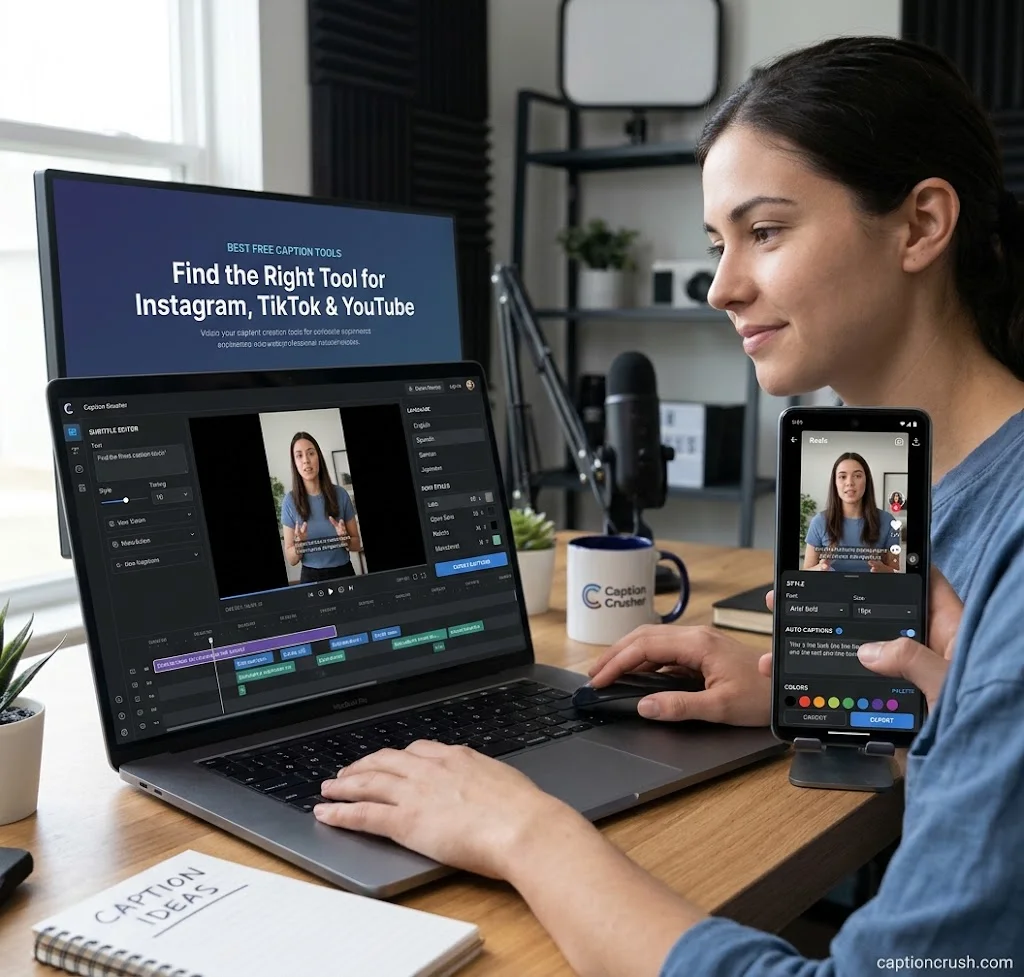
Most tools do the same core job. The real differences are free limits, export options, and language support.
| Tool | Languages | Free-plan notes | Exports |
|---|---|---|---|
| VEED | 125+ | Free to start; paid plan needed for longer videos and file downloads | SRT, VTT, TXT, burned-in video |
| Kapwing | 100+ (translation) | Free to try, but free exports carry a watermark | SRT, VTT, TXT, burned-in video |
| Canva | 100+ (translation, Pro) | Captions generated inside the video editor | MP4 |
| Maestra | 125+ | Try it with a 1-minute preview; sign up to download | SRT, VTT, SCC, STL, TXT and more |
| HappyScribe | 150+ | Free trial, paid plans for longer videos | SRT, VTT, STL, burned-in MP4 |
| Clipchamp | 100+ | Autocaptions are free for all users | SRT only |
Each tool has a strength. Kapwing offers 100+ preset caption styles and TikTok-style templates. VEED adds dynamic subtitles that pulse in sync with speech. Clipchamp includes a one-click profanity filter. Maestra supports speaker detection and live captions.
What about Instagram and TikTok’s built-in tools?
Both apps have their own auto captions feature. So does YouTube. They are fast, but they offer fewer style and export options. A standalone tool gives you more control over fonts, colors, and caption position.
How to Generate Captions Automatically in 3 Simple Steps
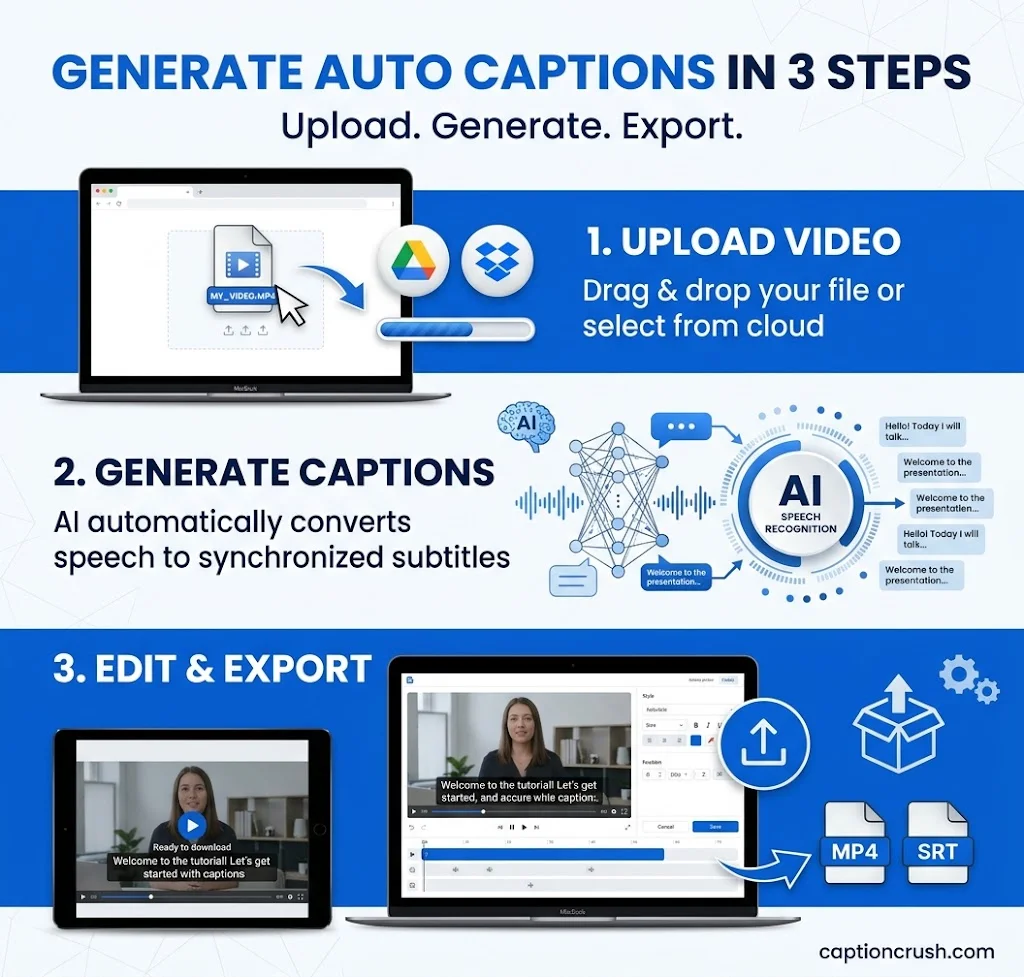
The process is almost the same in every tool. It takes a few minutes for a short clip.
How do I add auto captions to a video?
- Upload your video. Use an MP4 or MOV file, or paste a YouTube link. Kapwing and Maestra both accept links.
- Pick the spoken language and generate. The AI writes the captions and syncs them.
- Edit, style, and export. Fix wrong words, then pick your font, size, color, and position. Export the video or an SRT file.
A few quick tips for Instagram and TikTok:
- Use high contrast text. Clipchamp suggests yellow for social videos because it is easy to read and eye-catching.
- Keep lines short, so viewers can read them in one glance.
- Keep text away from the bottom edge, where app buttons and vertical 9:16 overlays can cover it.
- If captions drift out of sync, use a subtitle sync tool. Kapwing and Maestra both offer one.
One more point. Clipchamp detects one language at a time. If your video mixes two languages, split it into parts first.
Are Free Auto-Generated Captions Accurate and SEO-Friendly?
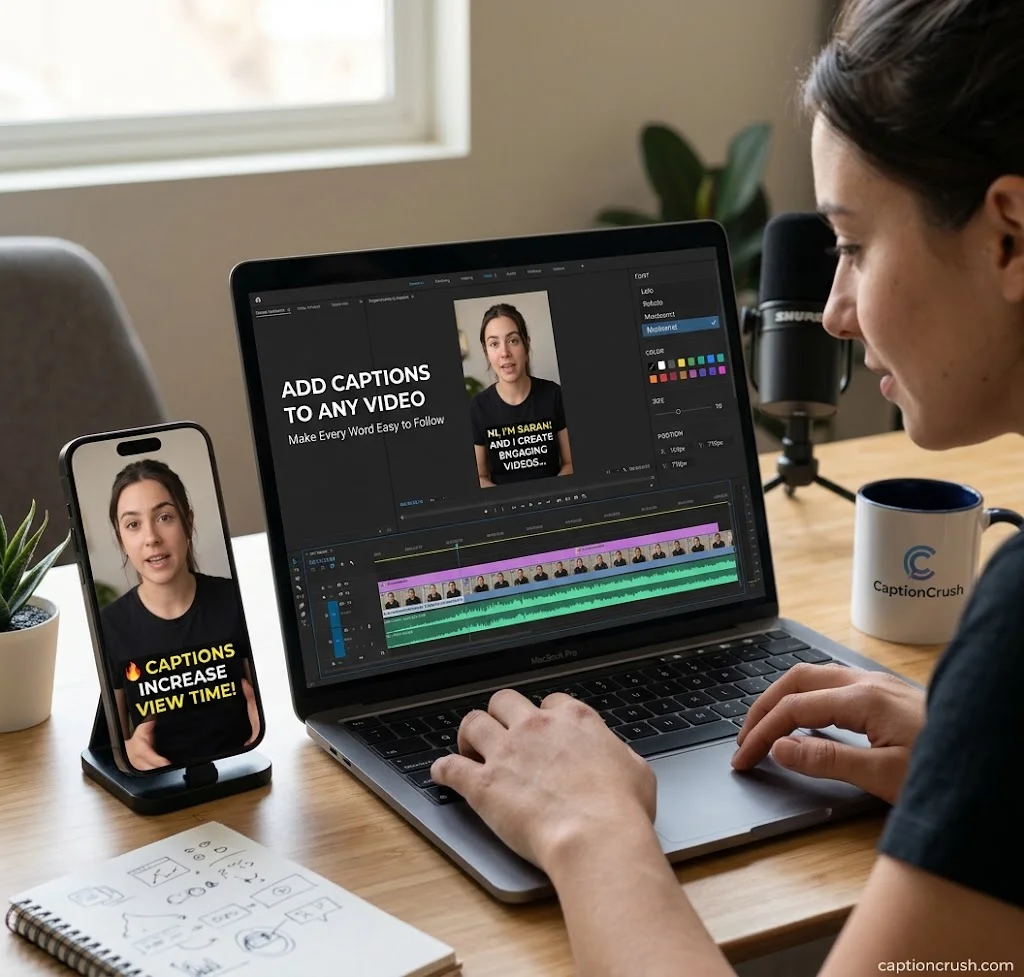
They are fairly accurate, but not perfect. And yes, they can help your video SEO.
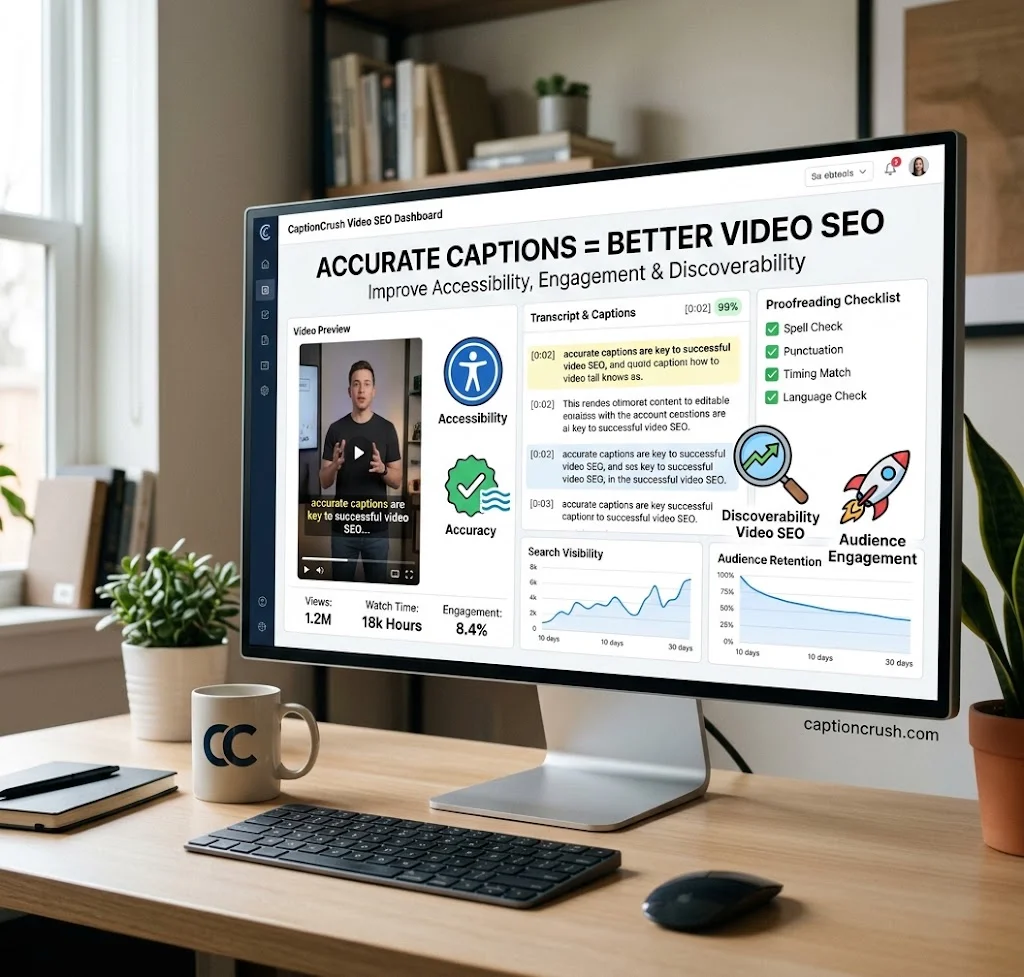
How accurate are auto captions? Claims vary. Kapwing and Maestra advertise about 99% accuracy. HappyScribe says its AI subtitles are 85-95% accurate, and offers human subtitles for up to 99%. Treat these as best-case numbers. Accents, background noise, slang, and brand names can lower accuracy.
Use this quick proofreading checklist:
- Check names, brands, and technical terms first.
- Watch the timing of fast speech.
- Split long lines into two short ones.
- Read the whole file once before you post.
Do captions help SEO? Yes. HappyScribe notes that captions turn speech into text that search engines can index. You can also paste the transcript into your video description or blog post. Captions also support watch time and engagement, because viewers can follow along on mute.
Are captions required in the US? For some content, yes. The FCC has closed captioning rules for TV programming, and the ADA covers accessibility more broadly. The WCAG guidelines set captions as a standard for web video. Check which rules apply to your business.
Last, think about privacy. Read each tool’s policy before you upload private videos. Clipchamp states that it does not store audio files.
FAQs
What is a free auto caption generator?
It is an AI tool that listens to your video and writes timed captions for you. You can edit the text, style it, and export it as a video or an SRT file. Many tools are free to start, with limits on length, exports, or watermarks.
How does an auto caption generator work?
It uses speech recognition (ASR) to turn spoken words into text. It then adds timestamps so each line shows at the right moment. You review the text, fix errors, and export.
Is there a free auto caption generator for Instagram and TikTok?
Yes. Instagram and TikTok both have built-in auto captions. Tools like Clipchamp, Kapwing, VEED, and Canva also create captions for Reels and TikToks. Check each tool’s free limits before you start.
Can I generate captions automatically without signing up?
Sometimes, but only partly. Maestra lets you try the tool with a 1-minute preview before signup, but you must sign up to download. Most other tools need an account to edit and export.
Are free auto-generated captions accurate and SEO-friendly?
They are often 85-99% accurate, depending on the tool and your audio. Always proofread them. Clean captions and transcripts add indexable text, which can help your video get found.
Conclusion
A free auto caption generator saves time and helps your videos work on mute. Tools like VEED, Kapwing, Canva, Maestra, HappyScribe, and Clipchamp all make captions in minutes, but they differ in free limits, exports, and languages. Pick one that fits your platform, then proofread every caption before you post. Accurate, easy-to-read captions keep viewers watching, help people with hearing loss, and give search engines more text to understand your video.

Timmy Abroy is a content creator and the voice behind CaptionCrush, where he shares practical tips on social media captions, creator growth, and content strategy. When he’s not writing, he’s testing what actually gets people to stop scrolling.