Captions pop up everywhere now — your phone, your TV, even Instagram Reels turn them on without asking. If you just want a clean screen again, here’s exactly how to turn off captions on any device you own.
This guide walks through every major platform: phones, computers, streaming apps, smart TVs, and social media. No fluff, just the steps that work.
Table of Contents
How to Turn Off Captions on Windows, Mac & Chrome
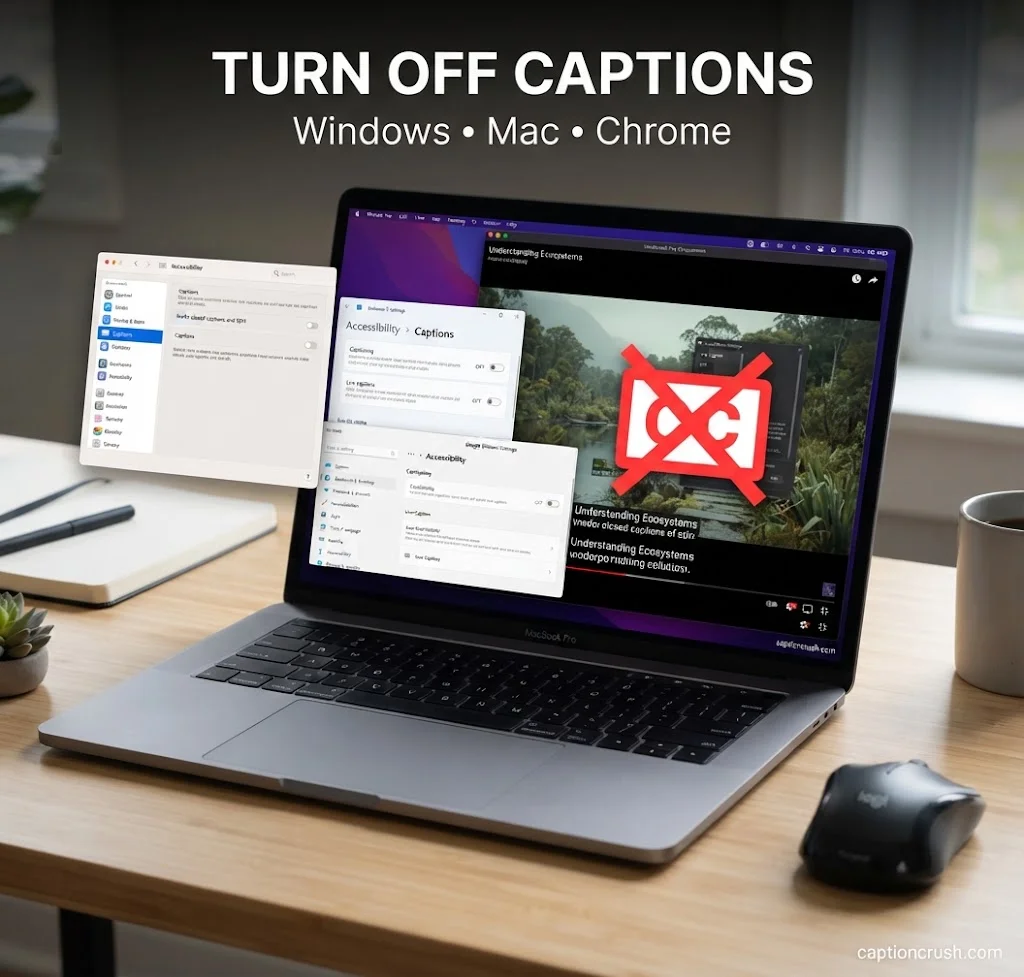
Desktop captions usually come from two places: your operating system or your browser. Here’s how to shut off both.
On Windows, press Windows + I to open Settings, then go to Accessibility > Captions. Toggle Live Captions off. This is a system-wide setting, so it affects captions across apps that support it, not just one program.
On Mac, click the Apple menu and open System Settings > Accessibility > Captions. Uncheck “Prefer Closed Captions and SDH.” SDH stands for Subtitles for the Deaf and Hard of hearing — a caption format that also includes sound cues like “[door slams],” not just dialogue.
Chrome has its own caption feature called Live Caption, and it’s separate from your OS settings. Live Caption generates captions for almost any audio playing in the browser — YouTube, podcasts, even video calls — using on-device processing, so nothing gets sent to Google’s servers.
Must Visit: CapCut Captions: 200+ Amazing & Ultimate Captions for Videos (2026)
Turn Off Live Caption in Chrome
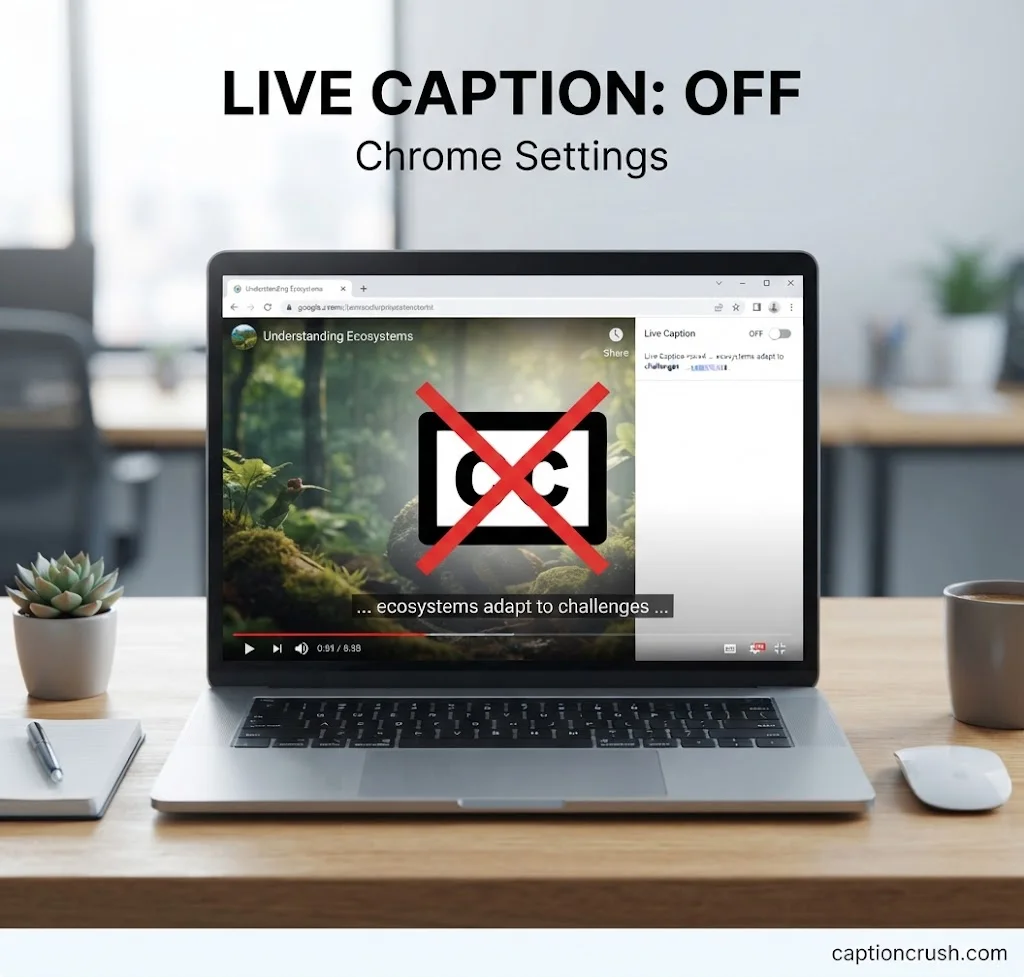
- Open Chrome and click the three-dot menu in the top right.
- Select Settings > Accessibility.
- Toggle Live Caption off.
If you’re on a Chromebook, the same toggle lives under Settings > Accessibility > Manage accessibility features > Audio and captions.
How to Turn Off Captions on iPhone, Android & Samsung Phones
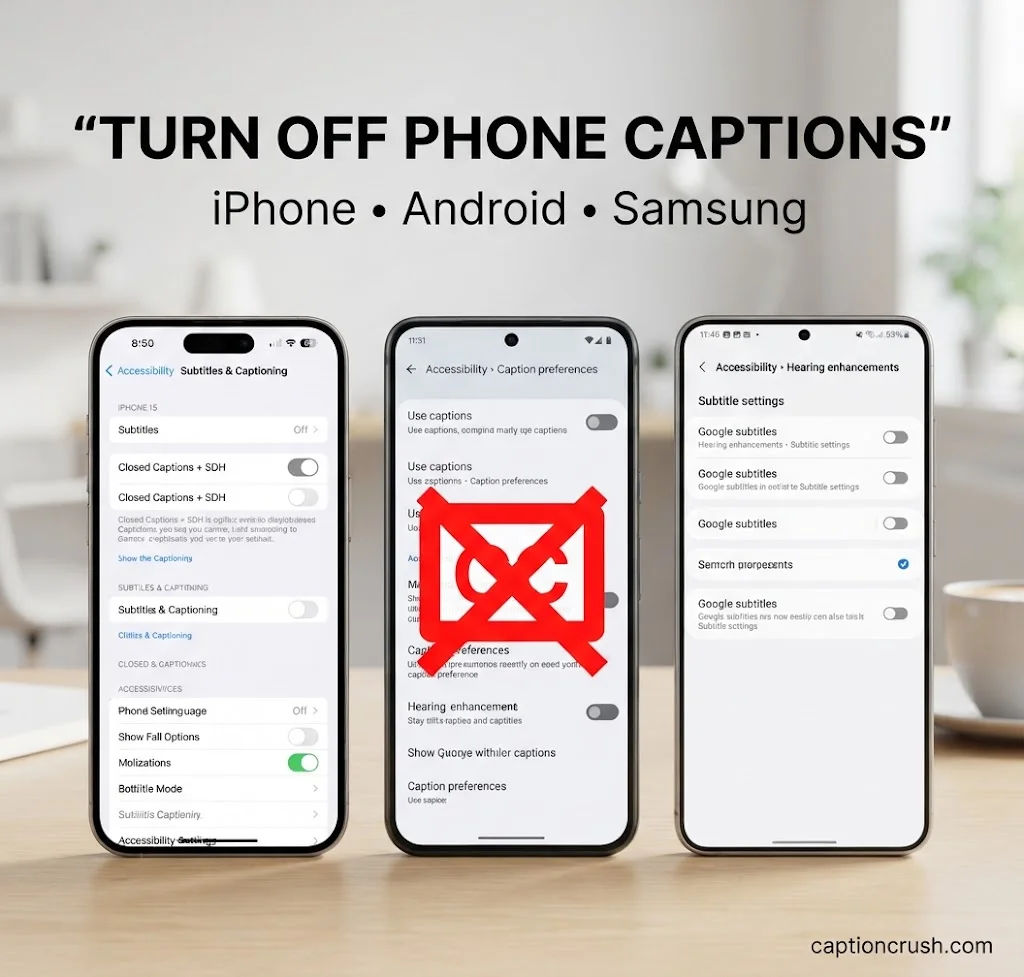
Mobile captions are trickier because they can be set at the OS level and inside individual apps. Turning one off doesn’t always turn off the other.
On iPhone, go to Settings > Accessibility > Subtitles & Captioning and toggle Closed Captions + SDH off. This controls captions for content that plays through Apple’s native video player, including Apple TV+.
On Android, open Settings > Accessibility > Caption preferences and turn off Show captions. Android’s caption system, powered by Google, applies to apps that pull from the system caption service — though many apps like Netflix or YouTube use their own in-app toggle instead.
Turn Off Captions on Samsung Galaxy Phones
Samsung runs its own interface, One UI, layered over Android, so the caption menu sits in a slightly different spot:
- Open the Settings app.
- Tap Accessibility.
- Tap Hearing enhancements.
- Tap Caption settings and turn Show captions off.
If captions are still showing up inside a specific app (like YouTube or a video player), you’ll need to disable them separately inside that app’s own settings — the system-level toggle doesn’t always override app-level captions.
How to Turn Off Captions on Streaming Apps & Smart TVs
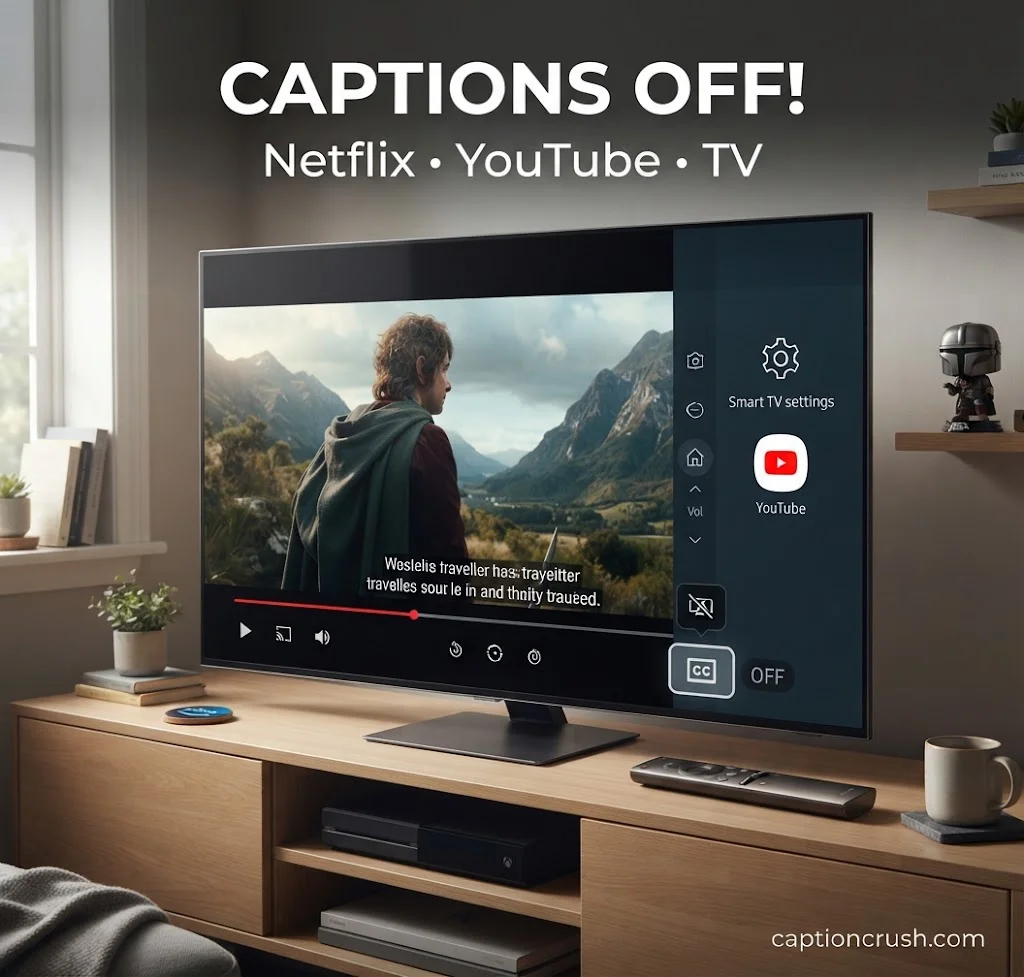
Streaming platforms almost always control captions inside the video player itself, not through your device’s system settings.
Netflix: Tap the speech bubble icon during playback, then select Off under Subtitles. Amazon Prime Video: Tap the CC/Subtitles icon and choose Off. Disney+, Hulu, and Apple TV+: Tap the screen while a video plays, select Audio & Subtitles, then choose Off. YouTube: Click the CC icon on the video player. If it’s highlighted, click once to turn captions off.
Smart TVs handle it at the device level instead:
- Samsung TV: Menu > Settings > General > Accessibility > Caption Settings > Off
- LG TV: Settings > Accessibility > Subtitles > Off
- Sony (Android TV): Home > Settings > Accessibility > Captions > Off
Cable and satellite boxes are a separate layer entirely. On Xfinity, press Menu twice, then go to Setup > Closed Captioning > Off. On DirecTV, press Info, select CC, then Closed Captioning > Off.
How to Hide Captions on Instagram, Facebook & Social Apps

Social platforms auto-generate captions using speech-to-text AI, and they’re usually turned on by default for Reels and Stories — which is exactly why so many people search for how to hide them.
On Instagram, open the Reel or Story you’re creating (or editing), tap the captions sticker if it’s already added, and either delete it or tap it and select Remove. If auto-captions are appearing on videos you’re watching rather than posting, check Settings > Accessibility > Captions inside the Instagram app and turn the toggle off.
On Facebook, open a video, tap the CC icon in the player controls, and select Off. Facebook enables auto-captions by default in many regions, partly because roughly 85% of Facebook videos are watched with the sound off, according to data widely cited by Digiday — so the platform leans on captions heavily to keep viewers engaged.
TikTok works similarly: tap the captions icon on a video during editing, or go to your accessibility settings to disable auto-captions app-wide. Zoom users can turn off live transcription under Settings > Accessibility > Closed Captioning.
How to Disable Automatic Captions (And Stop Them From Turning Back On)
Automatic captions are different from regular closed captions. Regular CC comes pre-written by the content creator or broadcaster. Automatic captions are generated in real time by speech recognition software, which is why they sometimes misread words or lag slightly behind the audio.
Disabling automatic captions usually means turning off a generation feature (like Chrome’s Live Caption or Instagram’s auto-caption sticker), not just hiding a pre-existing caption track. That’s an important distinction — some settings only hide captions temporarily, while others stop the software from creating them in the first place.
Why do captions keep turning back on? A few common culprits:
- A software update reset your accessibility settings to default
- You’re signed into a shared device or profile where someone else turned captions on
- An app update re-enabled its built-in caption feature
- A cloud-synced accessibility profile re-applied your old settings on a new device
If captions keep reappearing, check both your system-level accessibility settings and the in-app caption toggle — disabling only one rarely sticks for long.
FAQs
Where do I find captions in settings?
On most devices, captions live inside Accessibility settings. On iPhone, it’s Settings > Accessibility > Subtitles & Captioning. On Android and Samsung, it’s Settings > Accessibility > Caption preferences (or Hearing enhancements on Samsung). On Windows and Mac, it’s under Accessibility > Captions in system settings. Streaming apps and browsers usually keep their own separate caption controls inside the video player or app settings menu.
How do I hide captions on Instagram?
Tap the caption sticker on a Reel or Story and select Remove if you’re editing your own content. To stop auto-generated captions from appearing while you watch videos, go to Settings > Accessibility > Captions inside the Instagram app and toggle it off.
How do I disable automatic captions?
Find the setting that controls auto-generated captions specifically — not just a caption display toggle. Examples include Chrome’s Live Caption (Settings > Accessibility), Android’s Caption preferences, or Instagram’s caption sticker inside a Reel. Turning these off stops the software from generating new captions rather than just hiding an existing track.
How do I turn off captions on my Samsung phone?
Open Settings > Accessibility > Hearing enhancements > Caption settings and turn Show captions off. If a specific app (like YouTube or Netflix) still shows captions, disable them separately inside that app, since Samsung’s system setting doesn’t always override app-level caption controls.
Conclusion
Captions aren’t going away — 87% of Americans say they use captions at least sometimes, according to a 2025 study by XR Extreme Reach, and interestingly, 80% of caption users aren’t hearing impaired at all (Verizon Media & Publicis Media). But when you just want a clean screen, the fix almost always comes down to two places: your device’s accessibility settings and the app’s own caption toggle. Check both, and captions should stay off for good.

Timmy Abroy is a content creator and the voice behind CaptionCrush, where he shares practical tips on social media captions, creator growth, and content strategy. When he’s not writing, he’s testing what actually gets people to stop scrolling.