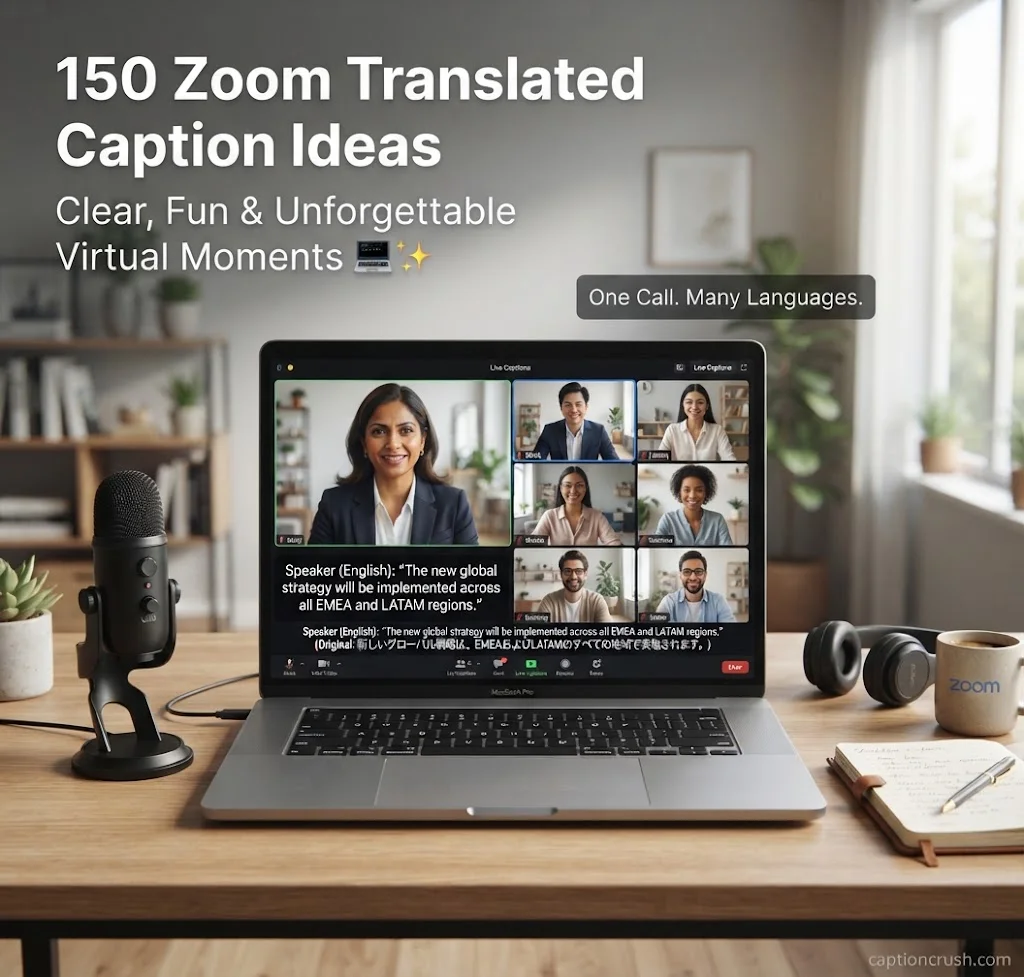
Language gaps can turn a good call into a confusing one. Zoom translated captions fix that by showing speech in your own language as people talk.
Here are 150 simple ideas for work, family, school, and events. Each one is short, clear, and ready to use.
Zoom translated captions turn a speaker’s words into captions in another language, in real time, during a meeting or webinar. Zoom launched the feature in June 2022. Now let’s put it to work.
Table of Contents
Zoom Translated Captions Setup & Accuracy Tips
Good setup makes Zoom caption translation smooth for everyone. These ideas cover the requirements, the settings, and the habits that improve accuracy.

- Check your plan first. Zoom Workplace Business Plus, Enterprise Essentials, Enterprise Plus, and Enterprise Premier qualify.
- Ask your admin about the add-on if your plan doesn’t include the feature.
- Turn on automated captions first. Translated captions won’t switch on without them.
- Admins: sign in to the Zoom web portal, open Admin Center, go to Settings, then Meeting. Switch on Translated captions under In Meeting (Advanced).
- Confirm any pop-up, then click Edit translation languages to choose your pairs.
- Learn the term “language pair.” It means the speaking language plus the caption language.
- Try a real example. Speak English, then offer Spanish, Chinese, and Ukrainian captions.
- Trim the defaults. All supported pairs start switched on, so keep only the ones you need.
- Set rules for one team. Admins can change the setting for a single group under Users, then Groups.
- Change your own setting. Open My account, then Settings, then Meeting.
- Toggle grayed out? An admin has locked it at the group or account level.
- Lock the setting if you want every user on the same page.
- Let guests self-serve. Participants can turn on captions themselves, so the host doesn’t have to.
- Find Show Captions in the meeting toolbar. It may sit under More, then Captions.
- Click the small arrow beside Show Captions. Under Captions and translation, turn on Translation.
- Pick your language and click Save. Your choice is remembered for future meetings.
- Check the speaking language. English is the default, so change it if the speaker uses another language.
- Use a supported app. The Zoom desktop app for Windows or macOS, or the web app, works.
- Know the range. Zoom’s help pages list about 36 languages for translated captions.
- Skip dialect pairs. Translating between French (France) and French (Canada) isn’t supported.
- Remember the limits. Catalan and Welsh can be caption languages but not the spoken language.
- Expect partial coverage. Bengali and Greek only work with certain languages.
- Turn on Full Transcript in the web portal for a side panel with speaker names.
- Resize the text. Open Caption settings and move the font-size slider.
- Plan for recordings. Translated captions don’t appear in the recording itself, but they do show in the full transcript.
- Admins: add a profanity filter list to keep live captions clean.
- Speak at a steady pace. Rushed speech trips up real-time translation.
- Choose plain words over idioms. Say “we’re running late,” not “we’re up against the clock.”
- Run a two-minute test call before any big event.
- Double-check key facts. Zoom notes that translated captions may not be accurate, so put names and numbers on a slide.
Zoom Live Translation Ideas for Work Meetings & Webinars
Teams around the world use Zoom live translation to stay aligned. These ideas fit town halls, sales calls, training, and big events.
- Collect languages at sign-up, then set your language pairs from that list.
- Announce captions in the first minute. Tell people to click Show Captions.
- Show a one-slide how-to for turning on translated captions.
- Pause after big announcements so captions can catch up.
- Share slides ahead of time so people can read along.
- Send follow-up notes in plain, short sentences.
- Let each teammate pick a caption language in daily stand-ups.
- Keep updates short. One idea per sentence translates best.
- Say project names slowly. Spell tricky terms in chat.
- Use chat for product names that captions might get wrong.
- Rotate speakers so no one talks over another.
- Recap action items in chat once the call ends.
- Ask clients their preferred language before the call, then enable that pair.
- Test with a colleague before a key client meeting.
- Put prices on screen, not only in speech.
- Repeat next steps out loud at the end of every sales call.
- Avoid slang in demos. Clear words travel across languages.
- Send a written summary after client calls.
- Make onboarding inclusive. New hires choose their own caption language.
- Teach staff where Show Captions lives in their first session.
- Share a glossary of company terms.
- Break lessons into short parts so captions stay readable.
- Invite questions in chat, which is easy to read and translate.
- Use the Full Transcript to review training later.
- Turn on translated captions before a webinar goes live. The host’s settings apply to all attendees.

- Match caption languages to your registration data.
- Rehearse with a panelist. Check the captions on a second device.
- Tell panelists to set the right speaking language.
- Remind attendees how to switch captions at the start of the event.
- Use it in Zoom Events. Translated captions also work in meetings and webinars run there.
- Offer captions in job interviews so candidates can follow comfortably.
- Write HR announcements in plain words.
- Set a profanity filter that fits company policy.
- Share policy documents in writing next to the live call.
- Add captions to benefits briefings for multilingual staff.
- Translate a Zoom Chat message. Click the ellipsis next to it.
- Click Show Original to go back to the first language.
- Use chat translation for quick questions across languages.
- Translate long messages in pieces for better clarity.
- Pair chat translation with live captions during busy calls.
- Mute when you’re not speaking. Clean audio means better captions.
- Keep to one speaker at a time.
- Use a headset mic for sharper sound.
- Ask in-room attendees to join on a laptop so they can see their own captions.
- Run a quick check: “Can everyone see captions?”
After connecting with friends, family, or coworkers virtually, why not take those good conversations on the road? Get inspired with these road trip captions to perfectly capture your next unforgettable journey, scenic stop, and open-road adventure.
Fun Zoom Caption Translation Ideas for Family, Friends & Events
Captions aren’t only for the office. They make family calls, parties, and game nights warmer and easier to follow.

- Ask relatives their languages before the reunion call.
- Let grandparents read captions in their first language.
- Send a simple text: “Click Show Captions at the bottom of your screen.”
- Make the caption text bigger for older eyes.
- Take turns telling family stories, one voice at a time.
- Record with everyone’s permission if you want to keep a transcript.
- Keep wedding toasts short. Brief sentences translate better.
- Set the speaking language to match whoever holds the mic.
- Share vows in writing as well.
- Skip captions for singing. Post the words in chat instead.
- Rehearse with the couple so the tech feels easy on the big day.
- Make a guest list with languages to plan caption pairs.
- Use captions at holiday dinners with relatives who speak different languages.
- Keep jokes plain. Idioms often get lost in translation.
- Slow down during group hellos.
- Ask everyone to say their name slowly at the start.
- Text the steps ahead of time for less tech-savvy guests.
- Read trivia questions slowly, and read them twice.
- Show each question on screen too.
- Mix languages on one team. Each player picks their own captions.
- Name the book and author in chat for book club night.
- Pick word games with short prompts.
- Rotate the speaker each round.
- Set the speaking language to the one you’re practicing.
- Compare speech and captions to spot new words.
- Switch captions to your native language to check you understood.
- Switch back to build your reading skills.
- Keep a list of new words from each call.
- Alternate languages every 15 minutes with a partner.
- Hold a weekly catch-up with friends abroad, each using their own language.
- Meet around a shared hobby, like gardening or football.
- Cook together on Zoom. Say ingredient names slowly.
- Share photos on screen and describe them in simple words.
- Celebrate milestones with a short, captioned toast.
- Plan a future visit together and write the dates in chat.
Zoom Live Captions for Schools, Accessibility & Learning
Captions help students, families, and people with hearing loss follow along. These ideas also cover limits worth knowing.
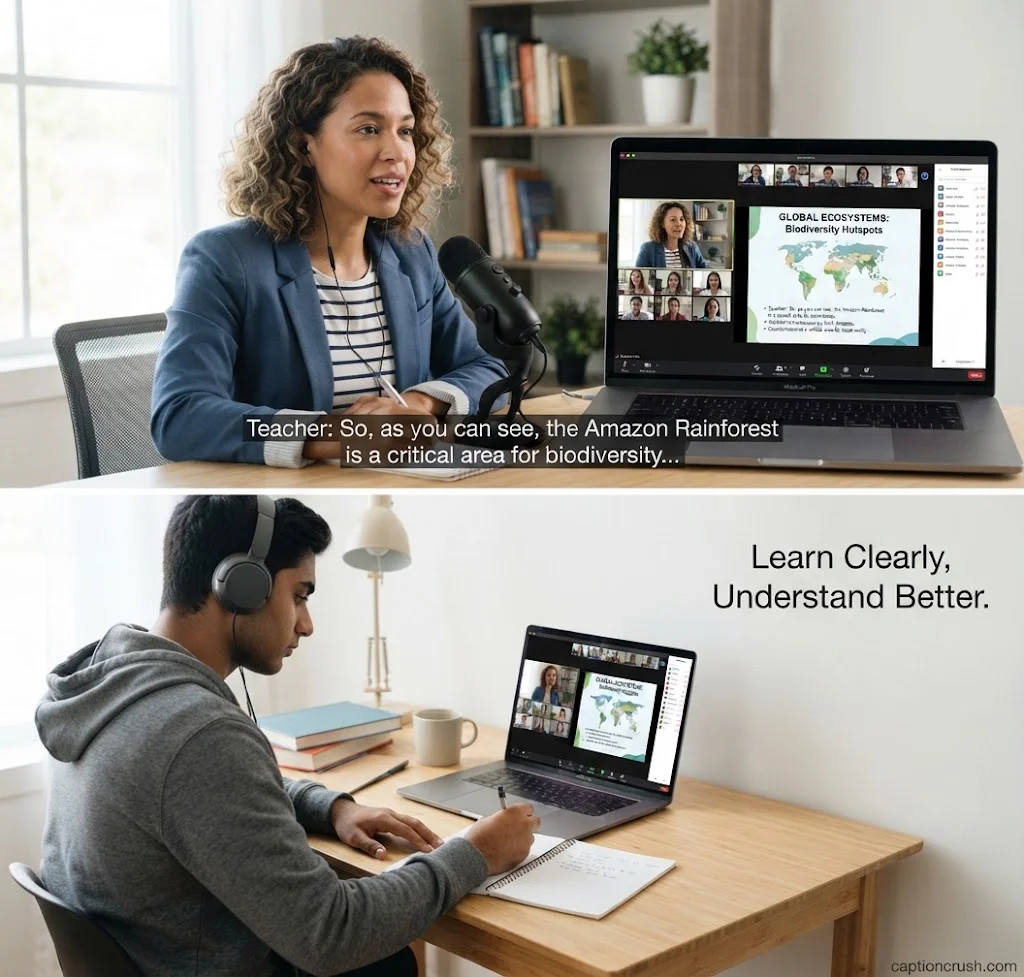
- Turn on captions before class starts.
- Show students where Show Captions is.
- Ask families their language before parent-teacher conferences.
- Share slides ahead of class.
- Spell key terms on screen.
- Pause after each key idea.
- Take questions in chat.
- Post a short written recap.
- Let English learners pick a caption language that helps them understand.
- Encourage a switch back to English as skills grow.
- Teach at a steady pace.
- Teach idioms on their own, not mixed into fast speech.
- Hand out a vocabulary list.
- Use the Full Transcript for review after class.
- Pair captions with visuals like slides and diagrams.
- Use captions for hearing loss. Zoom lists hearing-impaired users among those its accessibility tools support.
- Adjust caption size with the slider in Caption settings.
- Let the desktop app show captions automatically when they’re available.
- Use the Full Transcript to see who said what.
- Face the camera in good light. Clear audio and video help everyone.
- Use a headset to improve sound quality.
- Ask guests what access they need before the event.
- Know the AI option. Zoom says AI Companion translates and transcribes in 46 languages, included with paid Zoom Workplace plans.
- Try it with accents. Zoom says its AI aims to transcribe accented speech more accurately.
- Still speak clearly. Better audio always helps.
- Tidy your transcripts. Zoom says its AI can remove filler words from voice transcripts.
- Check your plan. Features and limits can change.
- Test with your own accent and share what works with your team.
- Collect languages at sign-up for community meetings.
- Set pairs ahead of time for lectures and services.
- Remind people about captions at every session.
- Add a volunteer greeter in chat to help people turn on captions.
- Keep announcements short.
- Share a written summary afterward.
- Check access first. Healthcare and higher education accounts may not have translated captions by default.
- Contact your Zoom Account Executive to have the feature enabled.
- Review your privacy and compliance rules before using it.
- Don’t rely on captions for medical or legal decisions. They may be inaccurate.
- Hire a qualified interpreter for high-stakes talks.
- Keep written materials ready as a backup.
FAQs
Can Zoom captions translate?
Yes. Zoom translated captions convert a speaker’s words into captions in another language, live, during a meeting or webinar.
How to Zoom captions?
Join your meeting and click Show Captions in the toolbar. You may need to click More, then Captions. English is the default speaking language.
How do I turn on translate on Zoom?
First, an admin or user turns on Translated captions in the Zoom web portal under Meeting settings. In the meeting, click the arrow beside Show Captions. .
How much does it cost to add translated captions to a Zoom meeting?
When Zoom announced the add-on in 2024, it listed the price at $5 per user per month. Some plans already include the feature.
How do I turn on live caption translate?
Use the same steps. Make sure the host has enabled translated captions, then click the arrow beside Show Captions and turn on Translation.
Is Zoom Live translation free?
Not by itself. Zoom live translation needs an eligible paid plan or the add-on. Once a host turns it on, any license type in that paid account can use it.
Conclusion
Zoom translated captions make calls clearer, kinder, and easier to follow. Start with one idea from each section, test it, and build from there. For setup steps, see Zoom’s guides on enabling translated captions and viewing captions in another language. Your next virtual moment could be your clearest yet. 💻✨

Timmy Abroy is a content creator and the voice behind CaptionCrush, where he shares practical tips on social media captions, creator growth, and content strategy. When he’s not writing, he’s testing what actually gets people to stop scrolling.